Articles / Guidesupdated for DaVinci Resolve 21.0 (June 2026)
Is DaVinci Resolve Good for Teenagers Learning Video Editing?
Quick answer
Yes. DaVinci Resolve is free, has no watermark, and teaches the same professional skills used in the industry, not a stripped-down kids' app. The real barriers are a steep interface and a laptop that meets Blackmagic's 16GB RAM minimum, not the software itself.
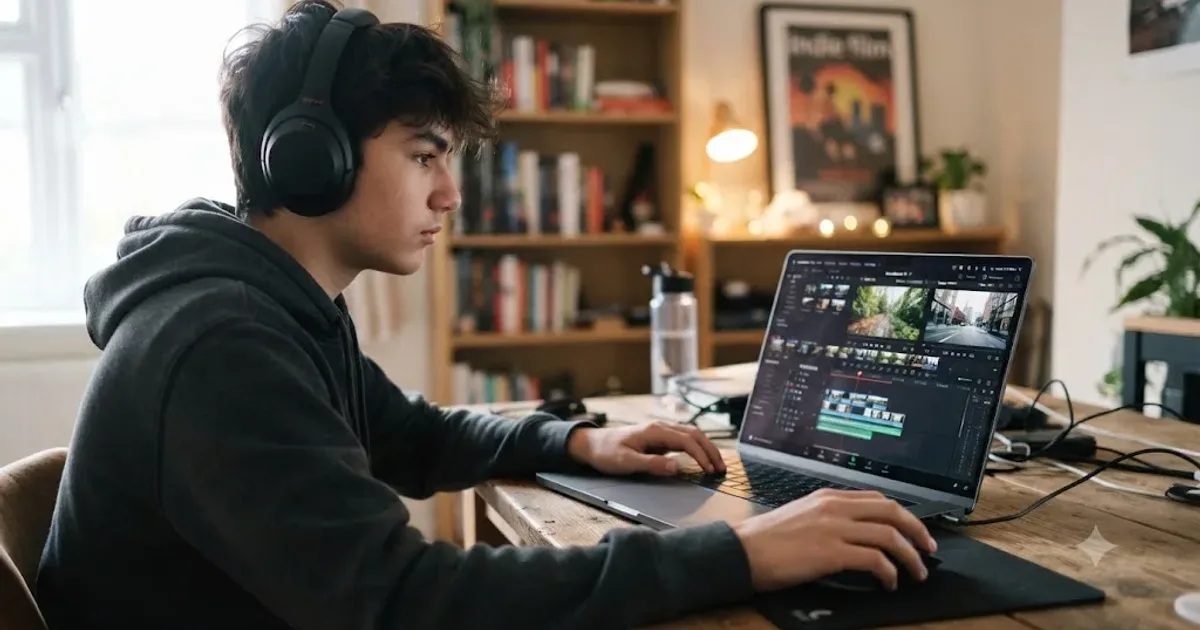
If your teenager just asked to install a color-grading tool used on real feature films instead of a simpler phone app, that's a reasonable thing to be unsure about. I get why. The short answer is yes, DaVinci Resolve is a genuinely good choice for a teenager learning video editing, and it's good for reasons that have nothing to do with being "kid-friendly." It's free, it's the same software professionals use, and nothing your teenager learns on it gets thrown away the day they turn eighteen.
The harder question isn't whether Resolve is appropriate. It's whether your teenager's laptop can run it, whether the interface will scare them off before they finish a first project, and whether there's something safer or faster they should try instead. That's what this guide actually answers.
Is DaVinci Resolve good for teenagers learning video editing?
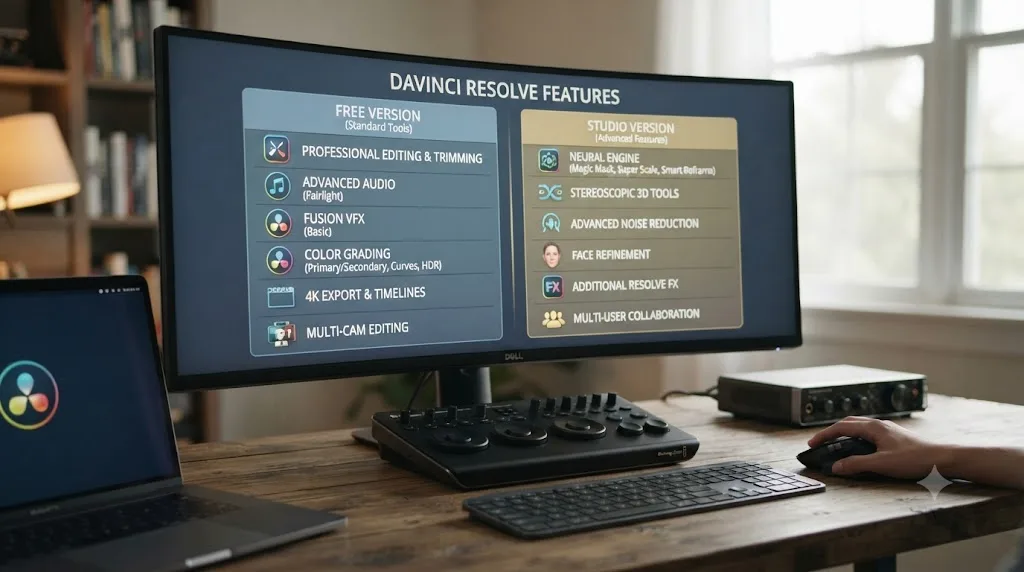
Yes, and the case for it holds up better than most parents expect once you look past the intimidating first impression. DaVinci Resolve is built by Blackmagic Design, and its free version includes complete editing, color grading, audio mixing, and visual effects with "virtually all 8-bit video formats at up to 60fps in resolutions as high as Ultra HD 3840 x 2160," according to Blackmagic's own product page. There's no watermark, no 30-day countdown, and no locked export button waiting to demand a credit card. That's not a trial dressed up as a gift. It's the actual software.
A teenager who learns DaVinci Resolve is learning the same interface a working colorist uses, not a simplified version built to be outgrown. That single fact is the whole argument for starting here instead of somewhere else. Phone apps like CapCut and consumer tools like iMovie are genuinely easier on day one, and there's a real place for them, covered later in this guide. But every hour spent in Resolve builds muscle memory that transfers directly into paid work, film school, or a serious hobby, because there's no second, harder tool waiting on the other side of "getting good." The tool a teenager starts on is the tool a professional finishes on.
The honest counterweight is the learning curve. Resolve packs seven specialized pages into one application, and the color room alone looks like something out of a post-production studio, because it is one. That's real friction for a first-time user of any age, and it's worse for a young teenager without much patience for a dense interface. The rest of this guide is about managing that friction specifically, not pretending it doesn't exist.
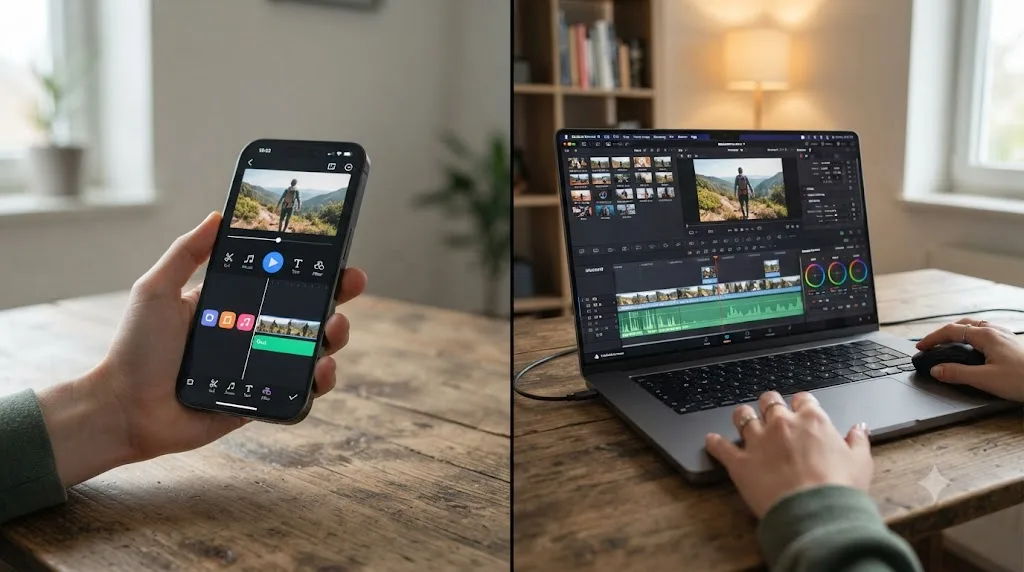
What exactly does a teenager get for free with DaVinci Resolve?
More than most people assume, and it's worth spelling out in specifics rather than trusting the word "free" to mean what it usually means in software.
| Included in the free version | Not included (Studio-only, $295) |
|---|---|
| Full editing on the Cut and Edit pages | Resolutions above 4K UHD |
| Node-based color grading on the Color page | Frame rates above 60fps |
| Fairlight audio mixing | DaVinci Neural Engine AI tools (Magic Mask, voice isolation, noise reduction) |
| Fusion visual effects and motion graphics | Stereoscopic 3D tools |
| The new Photo page for grading stills | Advanced HDR grading (Dolby Vision, HDR10+) |
| No watermark, no time limit | Text-based editing |
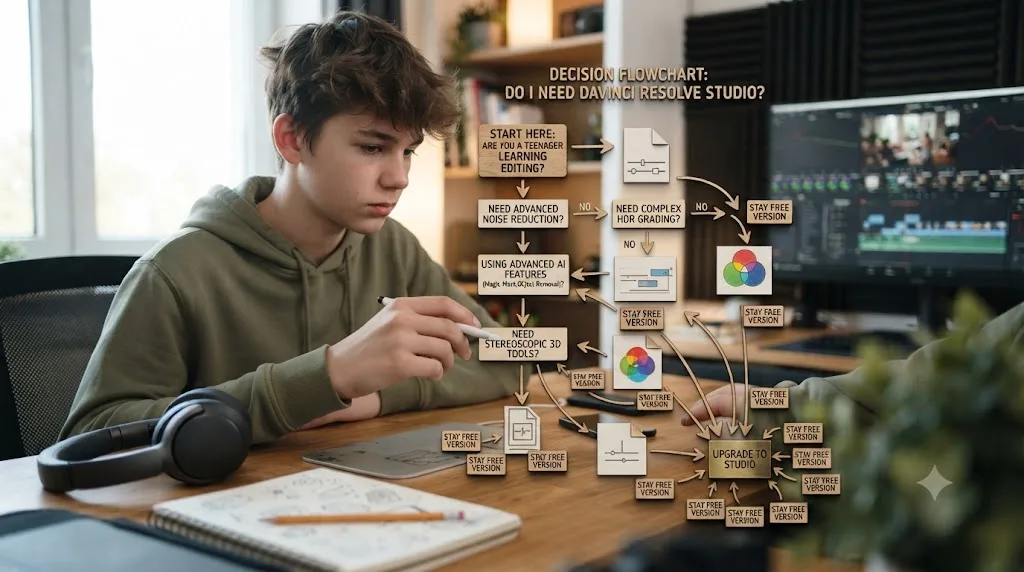
Source: Blackmagic Design, DaVinci Resolve product page and DaVinci Resolve Studio product page.
For a teenager cutting phone footage, editing a school project, or building a first YouTube channel, that left column covers everything. Nothing in the right column blocks a beginner from finishing a real, exported video. Our DaVinci Resolve for beginners guide walks through the full free-versus-Studio breakdown and the seven pages in more depth if you want the complete picture before your teenager installs anything.
There's one more free-tier detail worth flagging for a family shopping for gear rather than just software: every Blackmagic Pocket Cinema Camera ships with a full DaVinci Resolve Studio license included, per Blackmagic's own camera product page. If a real camera is already on your teenager's wish list for a birthday or a film class, that purchase quietly removes the Studio question entirely.
Can a teenager's laptop actually run DaVinci Resolve?
This is the question that trips up more families than the software itself. Resolve is heavier than a phone app or a consumer editor, and its requirements are real, not marketing minimums nobody hits in practice.
Per Blackmagic's published tech specs:
- RAM: 16 GB minimum system memory.
- GPU: A discrete or integrated GPU with at least 4 GB of VRAM.
- Operating system: A recent macOS, Windows 10 Creators Update or later, Windows 11, or Rocky Linux 8.6.
A school-issued Chromebook or an entry-level laptop bought for word processing and browser tabs almost never clears that bar. A gaming laptop, a recent MacBook, or a family desktop bought in the last three or four years usually does.
| Machine type | Likely to run Resolve well? |
|---|---|
| School-issued Chromebook | No, Resolve doesn't run on ChromeOS at all |
| Budget Windows laptop under 8GB RAM | No, well under the minimum |
| A hand-me-down MacBook Air from the last 3-4 years | Usually yes, for 1080p phone footage |
| Any Apple silicon Mac (M1 or newer) | Yes, comfortably |
| A gaming or creator laptop with a discrete GPU | Yes, comfortably |
The single most common reason a teenager gives up on DaVinci Resolve in the first week isn't the interface, it's a laptop that can't play the footage back smoothly. Choppy playback on underpowered hardware looks and feels exactly like "this software is too hard," when the actual fix is proxies, optimized media, or a machine upgrade, not more patience. If playback stutters, generating optimized media or dropping the playback resolution to Half under the Playback menu solves most of it without spending anything. Our beginner's guide covers the exact settings, and our proxy media setup guide walks through the full process for an underpowered laptop specifically.
One footage-specific catch worth knowing before you buy anything: on Windows, hardware-accelerated H.264 and H.265 decoding, the exact formats a phone or a cheap camcorder shoots, is a Studio-only feature, so the free version leans on the CPU. On a Mac, Apple's own media engine handles that work at the OS level, which is why a modest MacBook can feel smoother in Resolve than a Windows laptop with better specs on paper.
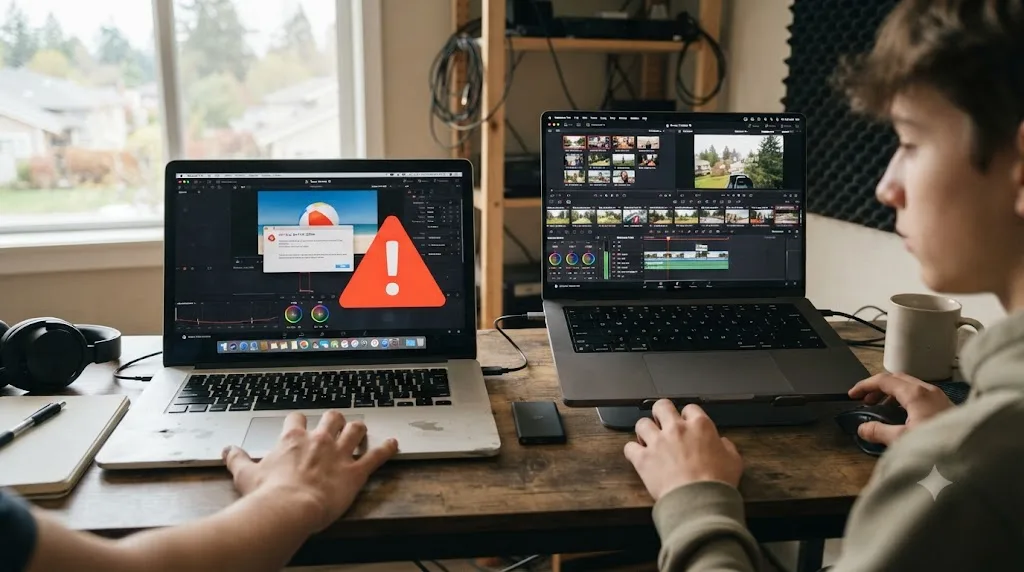
Does it matter if a teenager's laptop is Windows or Mac specifically?
Yes, in one specific way most buying guides skip past, and it comes down to how each platform decodes the footage a teenager is actually likely to shoot.
Puget Systems' own hardware testing confirms that the free version of DaVinci Resolve on Windows is limited to native, CPU-side decoding for H.264 and H.265 footage, the exact formats a phone camera or a budget camcorder shoots by default. GPU-accelerated decoding of that footage is a Studio-only feature on Windows. On a Mac, Apple's own media engine handles H.264 and HEVC decoding at the hardware level regardless of whether Resolve is running the free version or Studio, which is the specific, testable reason a modest MacBook can feel smoother scrubbing phone footage than a Windows laptop with better specs on paper.
| Windows, free tier | macOS, any tier | |
|---|---|---|
| H.264/H.265 decoding | CPU only | Hardware-accelerated automatically |
| GPU driver updates | Manual, from Nvidia or AMD directly | Bundled into macOS system updates |
| Typical price for equivalent GPU power | Usually lower | Usually higher |
The practical takeaway for a family buying a Windows machine specifically for the free tier: don't only chase GPU VRAM, budget for a genuinely capable CPU too, since it's doing decode work a Mac gets for free. A recent Ryzen 5 or 7, or an Intel Core 5 or 7-class chip, keeps playback smooth in a way a bargain CPU paired with an otherwise decent GPU won't.
Windows also puts more routine upkeep on the user. Outdated Nvidia or AMD GPU drivers are a common, fixable cause of the crashes and slow renders covered in the troubleshooting table further down this guide, and keeping them current is a manual step nobody does automatically. macOS bundles its GPU driver into the operating system itself, so a system update handles it without anyone thinking about it, one less maintenance task sitting on a teenager's plate.
None of this makes one platform categorically better for a teenager learning to edit. It just means the "which laptop" decision isn't only about the number printed on the GPU box. A cheaper Windows laptop with a genuinely strong CPU can outperform expectations on the free tier, and a Mac's smoother out-of-the-box decoding is a real, testable advantage that has nothing to do with brand loyalty.
What about a Chromebook or an iPad instead of a laptop?
A lot of families reach for whatever device is already in the house, and for plenty of teenagers that's a school-issued Chromebook or a hand-me-down iPad, not a Windows or Mac laptop. The honest answer splits hard between the two.
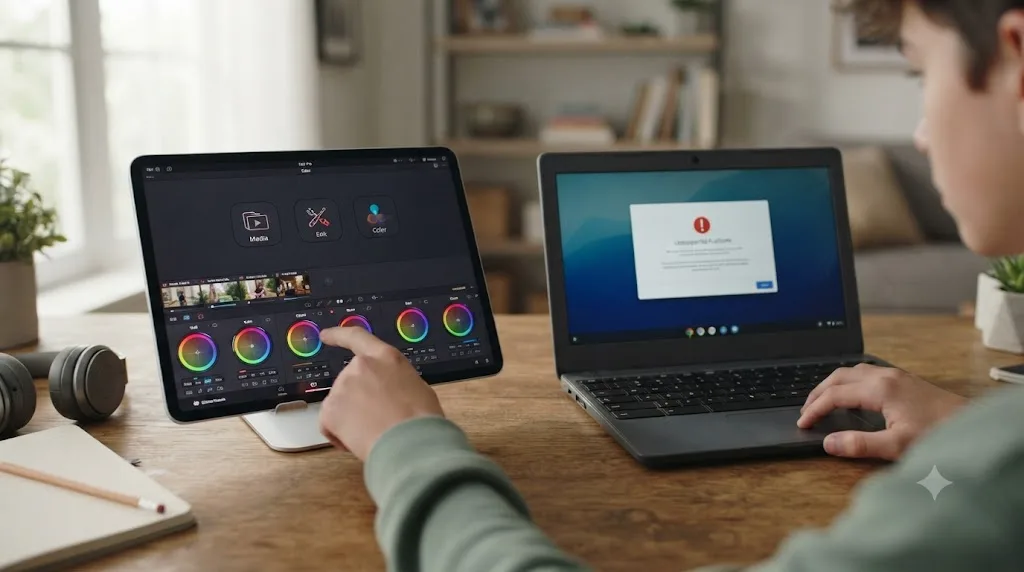
A Chromebook is a dead end. DaVinci Resolve has no ChromeOS build, and Blackmagic doesn't support one. ChromeOS's Linux app layer, Crostini, can run the installer in some cases, but it can't expose the real GPU compute access Resolve needs to actually edit, so the app either refuses to launch or crawls along at a couple of frames per second. Our full breakdown of why DaVinci Resolve doesn't run on a Chromebook covers every workaround people try, cloud streaming included, and why none of them turn a Chromebook into a real Resolve machine.
An iPad is a genuinely different story. DaVinci Resolve for iPad is a free, separate app built specifically for a touch interface, not a shrunken port of the desktop version, and it needs iPadOS 18 or later on a device with at least an A12 Bionic chip, per its own App Store listing. A Studio upgrade inside the iPad app costs $94.99 as an in-app purchase, and it's a completely separate purchase from the $295 desktop Studio license, buying one doesn't unlock the other. Apple's own listing recommends an iPad Pro with an M1 chip or newer and at least 8GB of RAM for full features; older, less powerful iPads still open the app but get restricted to HD resolution and a trimmed feature set.
| Device | Runs DaVinci Resolve? | What a teenager actually gets |
|---|---|---|
| Chromebook (any) | No | Nothing usable. No supported build exists |
| Older iPad, below A12 Bionic | No | App won't run at all |
| iPad with A12 Bionic or newer, iPadOS 18+ | Yes, a touch-built app | Free tier is real editing; full features and higher resolution want an M1 iPad Pro |
| Windows, Mac, or Linux laptop meeting the 16GB RAM / 4GB VRAM floor | Yes, the full desktop app | Everything covered in this guide |
The iPad app isn't a full substitute for the desktop experience, even on a top-tier iPad Pro. Fusion's node-based compositing doesn't exist on iPad at all, and while the Color page is present and touch-optimized, working a full node tree with a finger or an Apple Pencil is a different skill than a mouse and keyboard, one that doesn't transfer as cleanly to a professional colorist's workstation later. Projects do move between the iPad and desktop versions through Blackmagic Cloud, so a teenager can start a project on an iPad on the bus home from school and finish the color pass on a real computer that evening, but that back-and-forth workflow is worth testing on a small project before betting a bigger one on it.
A teenager's school-issued iPad can open a real, capable DaVinci Resolve project, but a Chromebook never will, no matter what workaround gets tried. For a family choosing between the two on a budget, that's the deciding fact. An iPad is a legitimate starting point for cutting and even basic color work on the go. A Chromebook is a device for watching training videos and writing scripts, not for opening the app itself.
What should a family buy if the current laptop doesn't meet the spec?
Once you know the current laptop won't clear Blackmagic's floor, the next question is what to actually buy, and the honest answer isn't "the most expensive laptop you can find." For DaVinci Resolve specifically, one spec matters far more than the marketing on the box suggests.
GPU VRAM matters more than CPU clock speed for a teenager's first Resolve laptop. Resolve leans on the graphics card for playback, color grading, and rendering far more than most software a family has bought before, so a fast CPU paired with a weak or shared GPU underperforms a modest CPU paired with a real discrete GPU every time. Blackmagic's stated 4GB VRAM minimum is a floor that works for HD footage, not a comfortable target for the 4K clips most phones and cheap cameras shoot by default.
Our full budget laptop guide walks through current picks and prices in detail, but the shape of the decision holds steady:
| Budget tier | What to look for | Where it falls short |
|---|---|---|
| Under $500 | Usually integrated graphics only, no discrete GPU | Fine for text edits and browsing, struggles with any real 4K timeline |
| A discrete-GPU laptop with 6GB+ VRAM and 16GB RAM | The realistic sweet spot for a first Resolve laptop, per our budget guide | Build quality and battery life trail pricier machines |
| A "budget" MacBook Air | Smooth on light HD or 4K projects thanks to Apple's media engine | No longer reliably the cheapest option after Apple's 2026 price changes, and RAM isn't upgradable later |
| Refurbished or hand-me-down gaming laptop | Can be excellent value if the GPU generation is recent | Avoid anything built around a GTX 10-series card or older; it clears the bare minimum on paper and still chokes on a real grade |
The practical rule for a parent who doesn't want to become a hardware expert overnight: look for "gaming laptop" in the listing, check that RAM is at least 16GB, and confirm the GPU has its own dedicated memory rather than sharing system RAM. Gaming laptops usually beat laptops marketed specifically at "creators" on price for the exact same GPU, since the graphics card doesn't care whether it's rendering a game frame or a Resolve timeline.
A few traps waste money specifically on a first Resolve laptop. Marketing terms like "creator laptop" or "content creation laptop" often just mean a thin, pretty chassis with the same integrated graphics as a laptop meant for spreadsheets, at a real premium for the branding. A laptop with 8GB of RAM soldered in and no upgrade path is a dead end regardless of price, since it sits below Blackmagic's stated floor before a single other app is even open. And a screen with poor color accuracy doesn't block editing, but it makes every color decision a guess that looks different on any other display, worth knowing before a teenager gets attached to a grade that looks wrong everywhere else.
One more wrinkle worth flagging before a family spends anything: a laptop that just barely clears Blackmagic's minimums will run Resolve, but it'll fight the software on every clip. If a teenager's interest sticks past the first month, a laptop bought right at the floor becomes the very bottleneck this guide warned about, choppy playback misread as "the software is too hard." Buying slightly above the minimum, not exactly at it, is usually the cheaper choice in the long run.
How does DaVinci Resolve compare to CapCut and iMovie for a teenager?
This is the real decision most families are actually facing, not "Resolve versus nothing." Nearly every teenager who wants to edit video has already touched CapCut, and a lot of them have iMovie sitting on a family Mac already. Here's how the three stack up on the things that matter to a parent and a teenager, not just a spec sheet.
| DaVinci Resolve (free) | CapCut (free tier) | iMovie | |
|---|---|---|---|
| Cost | $0, no watermark | $0, Pro features watermarked | $0, Apple only |
| Platform | Mac, Windows, Linux, plus a genuine iPad app | Phone-first, also desktop and web | Mac and iOS only |
| Learning curve | Steep at first, professional depth | Very low, built for speed | Low, deliberately simple |
| Color grading | Full node-based system | Sliders, filters, LUT presets | Basic filters only |
| In-app social feed or templates | None | Yes, a Templates tab functions like a content feed | None |
| Skills transfer to paid/professional work | Directly | Partially | Minimally |
| Owned by | Blackmagic Design (hardware company) | ByteDance (TikTok's parent company) | Apple |
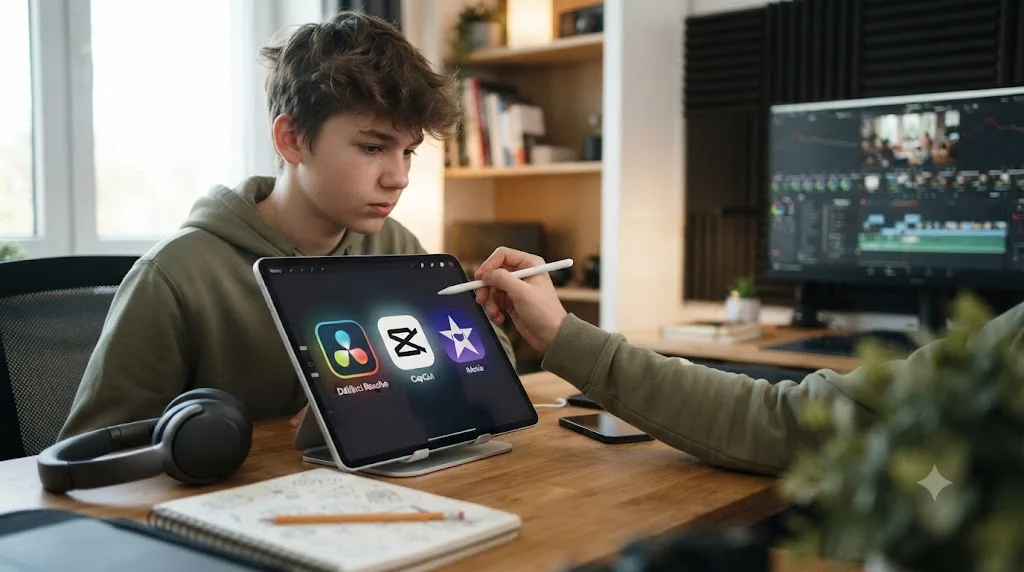
CapCut genuinely wins on speed and mobile convenience. It has built-in captions, trending templates, and a real phone app your teenager can use to shoot and edit from the same device, and our own DaVinci Resolve vs CapCut comparison covers that head-to-head in full for anyone posting short-form video daily. iMovie wins on simplicity and safety, since it's a closed, ad-free, feed-free app with no way to accidentally end up scrolling instead of editing.
Where Resolve wins is depth and ceiling. A skill learned in DaVinci Resolve doesn't expire the day a teenager wants to do something CapCut or iMovie were never built for. Color grading, real audio mixing, node-based effects, none of that exists in the simpler apps at any price. A teenager who starts on Resolve and later wants to do more never has to relearn a new tool from zero. A teenager who starts on CapCut or iMovie and later wants professional depth eventually has to make exactly the jump this guide is about, just later and with more habits to unlearn.
Is DaVinci Resolve safe for a teenager to use, privacy-wise?
This is worth answering directly, because it's usually the real question behind "is it good for teenagers," and it's rarely about the software's difficulty at all.
Structurally, DaVinci Resolve has almost none of the features that make parents nervous about the apps teenagers already use. There's no in-app social feed, no comment section, no trending-template scroll, and no algorithmic "discover" tab. It's a desktop application that opens a project and does exactly what you tell it to do. Nothing in Resolve is designed to keep a teenager's attention past the edit itself, which is the opposite design philosophy from most of the apps competing for a teenager's screen time.
On data collection specifically, Blackmagic's own privacy policy states the company collects "your name, email address, employer details, mailing address, phone number," country of residence, device information for activation, and usage statistics, mostly gathered at download and registration. That's a standard software-vendor data footprint, comparable to any desktop application requiring an account, and the policy states no minimum age requirement and makes no specific reference to children's data protections. In practice, a parent's email at download time is the only real data point most teenage users generate.
Compare that to CapCut, the app most teenagers already have. Protect Young Eyes, a parent-facing app review organization, rates CapCut for age 16 and up specifically, writing that "there are no parental controls provided" and that "explicit songs and videos are easily accessible through CapCut's 'Templates' and there's no way to control this," per its CapCut review. CapCut is also owned by ByteDance, TikTok's parent company, and it briefly went dark for US users in January 2025 under a federal law targeting foreign-adversary-controlled apps, a disruption Digiday covered as it left creators scrambling for alternatives overnight.
DaVinci Resolve carries none of the content-feed or ownership risk that CapCut's own reviewers flag for teenagers. That's not a knock on CapCut's editing tools, which are genuinely fast and capable. It's a structural difference: one app is a video editor, and the other is a video editor embedded inside a social platform with a feed, and the feed is where the actual safety concerns for teenagers live.
How steep is the learning curve for a 13 to 18 year old specifically?
It depends far more on the individual teenager than on their exact age, but there's a real pattern worth knowing before you commit an afternoon to installing it.
A younger teenager, roughly 13 to 15, who is comfortable navigating menus, following multi-step instructions, and reading a settings panel without giving up, can usually cut a basic three-clip project in a single sitting. What slows them down isn't the concept of editing, kids this age already understand video intuitively from years of consuming it. It's the sheer density of Resolve's interface: seven pages, dozens of panels, and menus that assume familiarity with terms like "node" and "bin" that a first-timer has never heard.
An older teenager, 16 to 18, especially one who already edits casually on a phone, tends to move faster because they already understand editing concepts, cuts, pacing, trimming, and just need to relearn where those concepts live in a new, denser interface. NextGen Bootcamp, which runs in-person video editing courses for high schoolers, puts it plainly: "High schoolers aged 14-18 can certainly learn video editing, and there are multiple pathways through which they can gain these skills effectively," according to its own guide on teaching teenagers video editing.
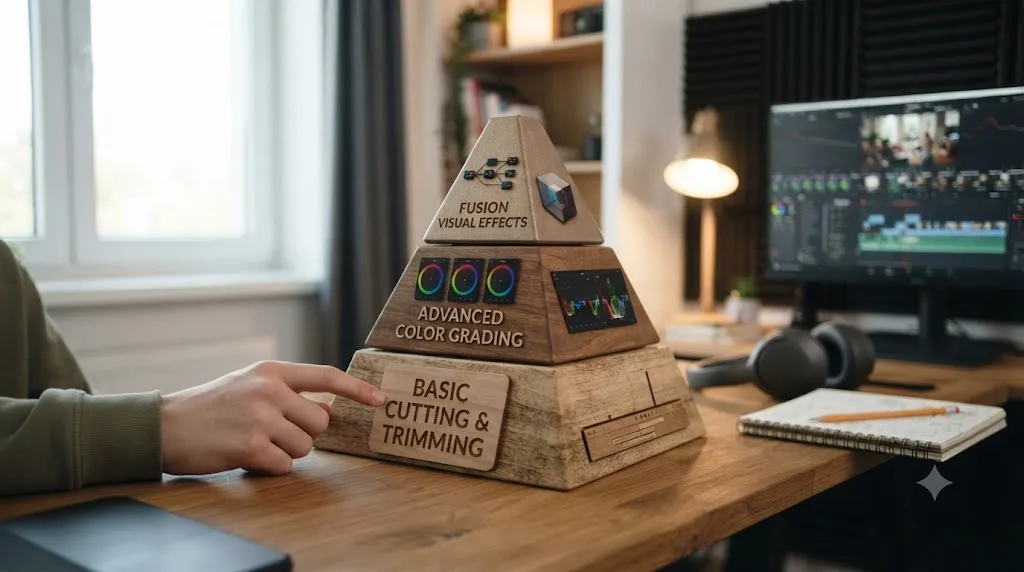
Here's the part that actually matters for planning a first session: Resolve's real learning curve isn't flat, it's staged.
| Skill | Learning curve for a teenager | Required for a first project? |
|---|---|---|
| Importing footage, cutting a timeline, exporting | Low, an afternoon | Yes |
| Basic color correction (one node, exposure and white balance) | Moderate, a few sessions | No |
| Fairlight audio mixing | Moderate, a few sessions | No |
| Node-based color grading, secondary corrections | High, weeks of practice | No |
| Fusion compositing and motion graphics | High, months of practice | No |
A complete, exportable DaVinci Resolve project for a teenager needs only three pages: Media to import, Cut or Edit to assemble, and Deliver to export. The parts that genuinely take real time, node-based color grading and Fusion, are optional and can be ignored entirely for months without blocking a finished, watchable video. Framing the software this way to a frustrated teenager, "you don't need any of the scary stuff yet," is often the difference between a first project that gets finished and one that gets abandoned on day two.
What age is actually right to start learning DaVinci Resolve?
There's no official minimum age from Blackmagic, and no age-gated version of the software. The real gating factor isn't a birthday, it's reading comprehension and patience with a dense interface, and that varies by kid more than by year.
A rough, honest guide, based on how the interface actually behaves rather than any marketing claim:
| Age range | Realistic starting point |
|---|---|
| Under 11 | Skip Resolve. Simpler tools like iMovie or Stop Motion Studio fit better, and there's no rush |
| 11 to 13 | Workable with a parent or older sibling nearby for the first few sessions |
| 14 to 16 | The sweet spot most schools and bootcamps target for structured video editing instruction |
| 17 to 18 | Fully capable of self-directed learning through free training and YouTube |
Common Sense Media's own curated list of movie-making apps and websites tops out around age 13, with tools like Animoto rated for that age and simpler options rated younger still. DaVinci Resolve doesn't appear on lists like that at all, and that's not an oversight, it's because professional post-production software was never built with a 10-year-old in mind. That's a feature for a teenager looking to outgrow the kids' app tier, not a warning label.
Blackmagic's own public comments back up the idea that teenage and young adult creators are squarely the audience the free tier is aimed at. David Hoffman, Blackmagic Design's Business Development Manager for the Americas, told the Broadcast Education Association:
"We really look back to the emerging creators and look at how our tools are available to them. It's been a big part of the Blackmagic soul and ethos. Being able to give young creators access to the technology, while maintaining the high quality and the integrity of the production value of our tools."
That's from BEA's coverage of Blackmagic's education outreach, and it's worth taking at face value: the free tier exists specifically to put professional tools in front of exactly this age group, years before a career or a tuition bill enters the picture.
Does a teenager need to pay for DaVinci Resolve Studio?
No, almost certainly not, at least not right away. The $295 Studio upgrade, per Blackmagic's Studio product page, adds AI-powered tools like Magic Mask and noise reduction, resolutions above 4K, frame rates above 60fps, and advanced HDR grading. None of that is required to cut, color, mix, or export a real, finished project.
The situations where a teenager's family might actually consider Studio are narrow and specific:
- A film class or school production lab already has Studio installed on lab machines, which our student discount guide covers in more depth, including how to check before spending anything.
- A newer camera in the house records 10-bit footage by default, which the free tier doesn't handle natively.
- A teenager is regularly hitting a specific AI-tool wall, like noise reduction on low-light footage, on a recurring basis, not a one-off.
There's a fourth option worth knowing about if a specific class or a summer film camp requires a Studio-only tool for just a few months: since September 2025, Blackmagic lets individuals rent Studio through Blackmagic Cloud for roughly $30 a month, no long-term commitment required, as Newsshooter reported when the license management system opened up to individuals. Renting only makes financial sense under about ten months of use, since $295 divided by $30 a month lands just under that mark, per RedShark News' coverage of the rental pricing. For a one-semester elective or a summer program, that beats committing to the full purchase before anyone knows whether the interest sticks.
For nearly everyone else, spending nothing and hitting no real ceiling for a year or more is the normal, unremarkable path. The free version of DaVinci Resolve isn't a trimmed-down demo for teenagers to graduate out of. It's the actual software, with a ceiling most beginners never come close to touching. If Studio does eventually make sense, our free vs Studio comparison breaks down the full feature list and the exact triggers worth paying for.
What do schools and Blackmagic themselves say about teaching Resolve to young people?
Both sides of this, the company that makes the software and the educators who teach it, point the same direction: toward getting the free tier in front of students early, not toward treating it as software students grow into later.
Blackmagic runs an active education outreach program, and it isn't subtle about the target audience. Beyond the Hoffman quote above, Sherwin Lau, an associate professor at New Mexico State University who has fully switched his classes to Resolve, made a related point to the same publication about why free software matters specifically for a student's long-term trajectory:
"It's free so they can download it right now on their laptops or their home computers and when they graduate, they don't have to change anything. Because I know that when you graduate, you lose the student discount. So, maybe student discounts are good and they can afford it right now. But as they're gone, they don't have their emails anymore, so they can't do that. So, being able to have a continuous flow from as a student all the way through post-graduation. It's been a game-changer for a lot of students."
That's from the same BEA coverage, and the logic applies just as directly to a high schooler as it does to a college student. A tool learned at 14 that costs nothing doesn't come with an expiration date the way a discounted subscription does.
On the training side, Blackmagic backs that access up with real material, not just a completion badge. Its official training page offers free downloadable lesson videos and a free Beginner's Guide book with project files included, the same curriculum film schools and certified training centers build their own courses around. Each of the four specializations, Editing, Color, Fairlight, and Fusion, pairs its training book with an online certification exam, delivered through a network Blackmagic describes as more than 250 certified trainers and over 100 training centers worldwide, according to that same training page. A teenager who finishes the Beginner's Guide and passes the Editing exam walks away with a vendor-issued credential, not just a stack of watched tutorials, years before most peers have anything comparable to put on a resume or a college application. That credential does real, if modest, work on a job application, too: a local business owner comparing two teenage freelancers, one with a portfolio link and a certification, one with neither, has an easy tiebreaker sitting right there in the inbox.
What's the fastest way for a teenager to actually learn DaVinci Resolve?
The fastest way to learn DaVinci Resolve fast, for a teenager or anyone else, isn't a paid bootcamp. It's free official training combined with small, finished projects, in that order, because watching a tutorial and doing the work are two different skills and only one of them sticks.
Here's the sequence that gets a teenager to a real finished video the fastest, without wasted detours:
- Start with Blackmagic's own free Beginner's Guide, available as a downloadable PDF from the official training page. It's written for a total beginner and comes with project files to practice on.
- Watch one short tutorial per new skill, not ten. Casey Faris' YouTube channel, with a subscriber base approaching 600,000, per the channel itself, covers exactly the beginner ground a teenager needs in a conversational, unintimidating style.
- Finish a tiny project before moving to the next lesson. A three-clip cut of phone footage, no transitions, no titles, teaches more in an hour than a week of watching someone else edit. Our practice projects guide has ten of these, ranked in order, each one built to drill a single skill.
- Get feedback from someone who isn't a parent. Post the finished project to r/DaVinciResolve or Casey Faris' free Skool community, which runs specifically for beginners working through this exact stage.
- Add Color and Fairlight only once cutting feels routine, not before. Skipping straight to color grading before a teenager can confidently trim a clip is the single most common way beginners of any age burn out.
A finished three-minute project a teenager actually made teaches more than a week of tutorials about a project someone else already finished. That's true of any skill, but it's especially true of editing, where the actual decisions, what to cut, what to keep, how long a shot should breathe, only get practiced by making them yourself.
If a teenager wants structure beyond free material, our roundup of the best DaVinci Resolve courses compares the paid options against Blackmagic's free path, and it's worth checking that free training has actually stopped answering questions before spending anything on a course.
What does a realistic first two weeks actually look like?
Sequences and checklists are useful, but a concrete timeline makes the plan easier to actually follow. Here's what a realistic, unrushed first two weeks looks like for a teenager starting from zero, assuming an hour or two a few times a week, not a daily grind.
| When | What happens | Output |
|---|---|---|
| Day 1 | Confirm the laptop clears 16GB RAM, download the free version, skim the first two chapters of the Beginner's Guide | No exported video yet, and that's fine |
| Day 2-3 | Import three phone clips, cut them into a 30-45 second sequence, export it | First finished, exported video |
| Day 4-5 | Record a 60-second talking-head clip, cover jump cuts with two unrelated cutaways | Second project, first time using a second track |
| Week 2, early | Reframe one earlier clip into a vertical 9:16 export | Third project, first export built for a specific platform |
| Week 2, later | Post one finished project for feedback, try one basic color correction node on an old project | First outside feedback, first look at the Color page |
| Week 3-4 (optional, once cutting feels routine) | One basic Fairlight audio pass, one two-node color correction | Fourth project, first real use of two additional pages |
Notice what's missing from that table on purpose: Fusion, advanced grading, and Fairlight's full mixer. A teenager who finishes two weeks on this schedule has three exported, watchable videos and has never opened a single intimidating page. That's a realistic pace, not an aggressive one, and it's exactly the order that keeps a beginner from quitting on day three because color grading looked hard on YouTube.
Busy teenager? Stretch the same stages across a month instead of two weeks; the order matters far more than the speed. A three-week gap between the vertical export project and the first color node doesn't cost anything, since none of these skills decay from a short break the way a language or an instrument might. What does cost momentum is skipping the order entirely and opening the Fusion page out of curiosity before finishing a single project on Cut or Edit.
What are the best first practice projects for a teenager?
Vague advice like "just start editing" doesn't work for anyone, teenager or adult, because an empty timeline with no constraint invites either paralysis or an overambitious project that never gets finished. A good first project is small, specific, and ends in an actual export.
Here are three that fit a teenager's first week, in order:
A three-clip hard cut. Import three unrelated phone clips, order them into a 30 to 45 second sequence, trim the edges, export. No transitions, no titles, no music. This one project touches the Media page, the Edit or Cut page, and Deliver, the entire basic pipeline, without anything else to hide behind.
A talking-head video with cutaways. Record 60 seconds of talking to a phone camera about anything, a favorite game, a hobby, a complaint about homework. Cover the awkward jump cuts with a few unrelated clips on a second track. This is the format behind most of what teenagers already watch on YouTube, so it teaches a skill they'll recognize immediately from the consumer side.
A vertical export for a platform they actually use. Reframe a horizontal clip into a 9:16 timeline and export it at the settings a real platform wants. This is the project most likely to feel motivating, because the output looks like something they'd actually post, not just a practice file.
Our full practice projects guide covers ten of these in order, including where to find free footage if a teenager doesn't have their own clips ready, and how to scale each project down for an underpowered laptop.
What common technical snags trip up a teenager in the first few weeks, and how do you fix them?
Most of what makes a beginner quit isn't a skill problem, it's an unresolved technical glitch that gets misread as personal failure. Most of the errors a teenager hits in the first month have nothing to do with skill and everything to do with a specific, searchable fix. Here are the ones that come up most, and where to look when one of them shows up.
| Symptom | Likely cause | Where to look |
|---|---|---|
| Playback stutters or chokes on phone footage | The laptop's GPU or CPU can't decode the footage in real time, especially 4K H.264/H.265 clips | Generate optimized media or drop playback resolution; see our proxy media setup guide |
| A red "Media Offline" panel appears where a clip should be | The footage got moved, renamed, or unplugged from an external drive outside Resolve | Relink the media through the Media Pool; see our media offline guide for every cause |
| A finished project won't save, or edits vanish after reopening it | A corrupted local database or a permissions issue with the project folder | See our dedicated project won't save changes guide |
| Resolve crashes on launch or randomly mid-edit | An outdated GPU driver or a corrupted preferences file | Update the GPU driver first; if it persists, our crashing troubleshooting guide covers the rest |
| High CPU usage but low GPU usage during export | The free version on Windows decoding H.264/H.265 on the CPU instead of the GPU, covered above | See our high CPU, low GPU usage guide |
| A toolbar or panel disappears on the Edit page | An accidentally toggled UI layout, not a bug | See our Edit page toolbar missing guide |
| "GPU memory full" appears while grading or exporting | Too many high-resolution nodes, effects, or Fusion layers stacked on a GPU with limited VRAM | See our GPU memory full guide |
| Audio doesn't match the video, or disappears entirely | A codec Fairlight doesn't decode natively, or a muted or disabled track | See our no audio troubleshooting guide |
None of these mean a teenager is doing something wrong. They're the same handful of glitches every Resolve user runs into eventually, beginner or working professional, and every one of them has a known, specific fix rather than a mysterious one. The single best habit to build early: copy the exact error text or a description of the symptom into a search engine before assuming the whole project is broken. Someone else has almost certainly hit the same wall and posted the fix.
What career or college doors does this open, realistically?
It's worth being honest here instead of overselling it. Learning DaVinci Resolve as a teenager doesn't guarantee a film career, and no software does. What it realistically builds is a transferable, verifiable skill and, for the right teenager, an actual portfolio years before most peers have one.
Film and media production college programs increasingly teach on Resolve directly, alongside or instead of Premiere Pro, because it's free for students to practice on outside the lab and it's the industry's dominant color-grading tool regardless of which editor a production ultimately cuts on. A teenager who arrives at a college production program already comfortable with node-based color and Fairlight's mixer skips weeks of orientation that classmates starting from zero have to spend catching up.
Beyond a formal program, the practical, near-term payoffs for a teenager look like this:
- A real portfolio. A handful of finished, exported videos, even simple ones, beats a resume line that says "interested in video editing" for any application, scholarship, or freelance gig.
- Paid freelance work while still in school. Local businesses, youth sports leagues, and family friends regularly need short promotional or event videos, and a teenager who can deliver a clean cut and a proper export is genuinely employable for that kind of work.
- A head start on paid certification. Blackmagic runs certification exams for editing, color, Fairlight, and Fusion through its own training network, and a vendor-issued certification on a resume line reads better than a list of tutorials watched, well before a teenager applies to their first internship.
None of that requires Fusion mastery or professional-grade color work. It requires finishing real projects, which loops back to the practice-first approach covered above.
What should parents watch out for?
A short, honest list, because most of the real risk isn't in the software itself.
Software cost isn't the risk. Hardware cost is. A parent expecting "free video editor" to mean zero spending should know the real cost, if there is one, is usually a laptop upgrade to clear the 16GB RAM minimum, not a software purchase.
Download only from Blackmagic's official site. The free download is legitimate and requires nothing but a name and email, the same as any software vendor. Third-party "cracked" or "free Studio" downloads circulating outside official channels are a real malware risk and never necessary, since the genuinely free version already covers what a teenager needs.
Watch for burnout from front-loading the hard parts. The most common way a teenager quits isn't difficulty with basic cutting, it's diving straight into node-based color grading or Fusion because a YouTube thumbnail made it look exciting, hitting a wall immediately, and concluding the whole thing is too hard. Steering a beginner toward the cut-first, color-later order covered above heads this off.
No content moderation exists inside Resolve, because there's nothing to moderate. Unlike CapCut, there's no template feed, no trending sounds library, and no comment section to worry about. The privacy and content questions that matter with most apps teenagers use largely don't apply here, which is covered in more depth above.
Set expectations about the free tier honestly. A teenager who watches a professional colorist's YouTube video using Studio-only tools like Magic Mask might assume the free version can't do real work. It can. Reassure them the ceiling is much higher than they'll hit for a long while.
Is there an AI tool that helps a teenager while they're stuck inside DaVinci Resolve?
There's a small category of tools built for exactly the "I know what I want to do but can't find the button" moment, and it's worth naming honestly, including where it doesn't fit a teenager's budget or platform.
TryUncle is the on-screen assistant for DaVinci Resolve on macOS. Ask in plain words and Uncle points at the exact control on your screen. It's a paid app, currently $29.99 a month in founder pricing for its first 100 seats, and it's macOS only, so a teenager on a Windows laptop can't use it at all. TryUncle is honestly built with creators and freelancers in mind, not specifically for a teenager's hobby budget, and a monthly subscription is a real ask for a family deciding whether a kid's new interest will stick.
It's also not the only tool in this space, and the category is worth understanding before picking one. A few real alternatives, compared honestly:
| Tool | What it actually does | Platform | Price |
|---|---|---|---|
| TryUncle | Watches your live Resolve screen and points at the control; you make the move yourself | macOS only | Founder pricing, $29.99/mo |
| CutAgent | Executes editing instructions directly on your Resolve timeline from natural language | macOS, Resolve Free/Studio 20+ | See cutagent.ai |
| Eddie (heyeddie.ai) | Builds a rough cut from a transcript, exports to Resolve, Premiere, or FCP | Web, exports cross-platform | From $25/mo |
| PremiereCopilot | Silence cuts, captions, and AI B-roll for Adobe Premiere Pro, not Resolve | Premiere Pro plugin | From $7.99/mo |
Notice the split. A tool that edits for a teenager teaches them nothing about DaVinci Resolve. A tool that points at the control while a teenager makes the move themselves does. CutAgent and Eddie hand off the actual editing task, which is a fine goal for a working editor pressed for time, but it defeats the point while someone is still building the reps this guide is about.
For nearly every teenager reading this, the honest recommendation is to skip all of it for now. Free training, YouTube, and a documentation tab open in a second window solve the exact same "where's the button" problem at zero cost, and cost matters more for a hobby than a career. A paid AI assistant is worth revisiting later, once editing has moved from a passing interest to something a teenager does every week, and even then, only on a Mac.
Should a teenager start with DaVinci Resolve, or with CapCut or iMovie first?
There's no single right answer, but there is a sensible default based on what the teenager actually wants to do first.
If the goal is posting to TikTok or Instagram Reels this week, start with CapCut or the phone app they already have. Speed matters more than depth for that use case, and Resolve's desktop-first workflow will feel like unnecessary friction for a fifteen-second clip.
If the goal is a longer-term interest in filmmaking, YouTube, or a possible career, start with DaVinci Resolve directly instead of treating it as a "someday" upgrade. There's no real cost to starting early, the free tier has no expiration, and every hour spent now is an hour that doesn't need to be relearned later on a more capable tool.
If a teenager is already comfortable in CapCut or iMovie and wants more, that's the single best signal to introduce Resolve. Editing concepts transfer directly, cuts, trims, pacing, and what's genuinely new is the interface and the color and audio depth underneath it, not the basic idea of editing itself.
Plenty of teenagers end up using both, the same way plenty of working creators do: a phone app for same-day short-form posts, and Resolve for anything that deserves real color and sound. That's not indecision, it's matching the tool to the job, which is a habit worth building at any age.
Where should a teenager start this week?
Download the free version from Blackmagic's official site, confirm the laptop clears 16GB of RAM first, and open the free Beginner's Guide before touching a single tutorial video. Cut one small project this weekend, three clips, no transitions, and export it. That single finished file will teach more than a month of watching someone else's timeline, and it's the same first step a professional colorist took once, on the same software your teenager just installed.
Frequently asked questions
- Is DaVinci Resolve good for teenagers learning video editing?
- Yes. It's free, has no watermark or time limit, and uses the same interface professionals use, so nothing a teenager learns gets thrown away later. The tradeoff is a denser, more technical layout than a phone app like CapCut, and a computer that needs at least 16GB of RAM to run it comfortably.
- Is DaVinci Resolve too hard for a 13 or 14 year old?
- Not inherently, but it asks more patience than a phone editor does. A young teenager who's comfortable navigating menus and reading instructions can learn the Cut page in a single afternoon. What's genuinely hard, node-based color grading and Fusion compositing, is optional and can wait years without blocking basic editing.
- Is DaVinci Resolve free for teenagers, or do they need to buy Studio?
- Free, for nearly everything a teenager will do with it. The free version includes full editing, color grading, audio mixing, and visual effects with no watermark, capped at 8-bit footage and 4K/60fps. Studio's $295 one-time upgrade adds AI tools and higher resolutions that most teen projects never need.
- Is DaVinci Resolve safer than CapCut for a teenager to use?
- In the ways that matter to most parents, yes. DaVinci Resolve has no in-app social feed, no trending-template scroll, and no owner facing a foreign-adversary-app law in the US. CapCut's own reviewers, including Protect Young Eyes, recommend it for 16 and up specifically because of its content feed and lack of parental controls.
- What computer does a teenager need to run DaVinci Resolve?
- At minimum, 16GB of RAM and a GPU with 4GB of VRAM, per Blackmagic's published tech specs, on a recent macOS, Windows 10 or 11, or Rocky Linux 8.6 machine. That's a real bar for an aging school laptop. A mid-range machine from the last three or four years usually clears it without trouble.
- Can a teenager learn DaVinci Resolve on a Chromebook or iPad instead of a laptop?
- Not on a Chromebook. DaVinci Resolve has no ChromeOS build, and nothing turns a Chromebook into a real Resolve machine. An iPad works differently: DaVinci Resolve for iPad is a free, genuinely capable touch app that needs iPadOS 18 or later and at least an A12 Bionic chip, with a separate $94.99 in-app Studio purchase. Full features want a newer iPad Pro.
- What's the best way for a teenager to learn DaVinci Resolve?
- Blackmagic's own free training books and lesson videos, paired with small finished practice projects instead of endless tutorial watching. Casey Faris' YouTube channel and free community cover the same ground conversationally. Skip paid courses until free training stops answering specific questions, which for most teenagers takes months, not days.
- Is there an AI tool to learn DaVinci Resolve that's actually worth it for a teenager?
- Possibly, but check the fit first. TryUncle is a paid macOS app built for creators and freelancers, not specifically for teenagers, and it costs money every month. A teenager with a Windows laptop or a tight budget is better served by Blackmagic's free training and YouTube first, and only worth revisiting a paid tool once a hobby turns into steady practice.
Sources
- DaVinci Resolve product page (free version specs)
- DaVinci Resolve - Tech Specs (Blackmagic Design)
- DaVinci Resolve Studio product page (price and features)
- Blackmagic Pocket Cinema Camera product page (includes DaVinci Resolve Studio)
- DaVinci Resolve - Training (Blackmagic Design, free books and lesson files)
- PetaPixel: DaVinci Resolve 21 officially released with new photo editing, AI tools, and much more
- BEA: Blackmagic Design Aims To Use Their Editing Software To Reach More Student Creatives
- NextGen Bootcamp: Can High School Students (Ages 14-18) Learn Video Editing?
- Protect Young Eyes: CapCut App Review
- Blackmagic Design Privacy Policy
- CapCut vs DaVinci Resolve (CapCut's own comparison page)
- Common Sense Media: Movie Making Apps and Websites
- Casey Faris - YouTube channel
- Skool - DaVinci Resolve for Beginners! (Casey Faris' free community)
- Digiday: Creators are split on whether to keep using TikTok's editing app CapCut post-shutdown
- TryUncle (product site: how Uncle works, pricing, setup)
- Eddie AI - The Assistant Video Editor for Pros (heyeddie.ai)
- CutAgent - AI video editing for DaVinci Resolve
- PremiereCopilot - The AI Copilot for Adobe Premiere Pro
- DaVinci Resolve for iPad (Apple App Store listing: price, in-app purchase, requirements)
- Puget Systems: What H.264 and H.265 Hardware Decoding is Supported in DaVinci Resolve Studio
- Newsshooter: Blackmagic Design introduces a new way for individuals to rent DaVinci Resolve Studio
- RedShark News: Blackmagic Adds Monthly License Option for DaVinci Resolve Studio
Put this guide to work with TryUncle.
Ask about the step you’re on. TryUncle sees your screen and points at the control you need, so you can keep learning in your own project.
Get TryUncle for Mac or WindowsKeep reading
Guides · Jul 7, 2026 · 32 min
DaVinci Resolve for Beginners: The Complete Starter Guide
Learn DaVinci Resolve from zero: what it costs, what it needs to run, the seven pages you'll actually use, and the steps to cut your first project.
Guides · Jul 15, 2026 · 37 min
DaVinci Resolve Practice Projects for Beginners: 10 to Try
10 ranked DaVinci Resolve practice projects for beginners, from a 3-clip hard cut to a full capstone edit, plus where to find free practice footage.
Fixes · Jul 23, 2026 · 21 min
Does DaVinci Resolve Run on a Chromebook? The Honest Answer
DaVinci Resolve doesn't run on ChromeOS. Here's why Crostini can't fix it, what actually happens if you try, and the real alternatives for Chromebook owners.