Articles / Guidesupdated for DaVinci Resolve 21.0 (June 2026)
Can You Learn DaVinci Resolve in 30 Days? A Day-by-Day Plan
Quick answer
Yes, for the basics. Thirty focused days, roughly an hour a day, is enough to cut, grade, and export a real project with confidence. It is not enough for professional color matching, deep Fusion work, or paid-client speed, all of which need months of repetition after the 30 days build the foundation.
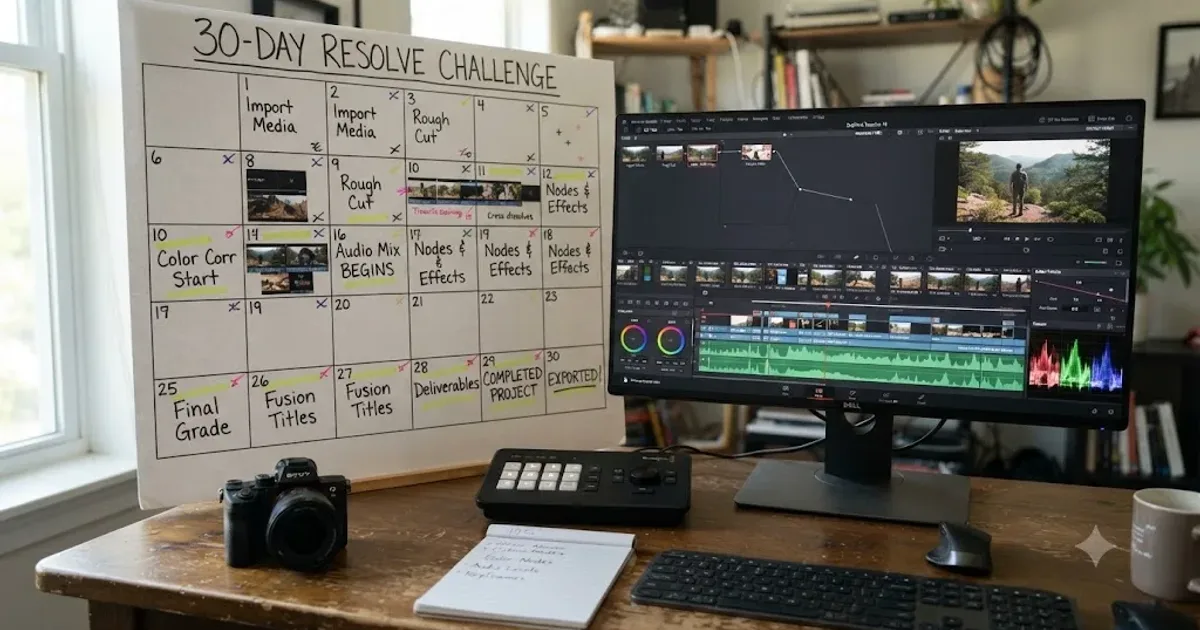
I've watched people set this exact goal, learn DaVinci Resolve in 30 days, and I've watched most of them either quit by day 10 or hit day 30 with something real to show. The difference was never talent. It was whether they had a plan that matched what 30 days can actually buy.
This post is that plan: a day-by-day breakdown of what to do each week, an honest answer about what 30 days gets you and what it doesn't, and the research behind why a month is a real, defensible unit of learning, not just a nice round number.
Can you really learn DaVinci Resolve in 30 days?
Yes, with a specific and honest definition of "learn." In 30 days of steady practice, most beginners can import footage, cut a timeline, apply a basic color correction, mix dialogue against music, and export a finished file they'd actually show someone. That's a real, useful floor. It's also not the whole software.
What 30 days doesn't buy is judgment. Matching the color of two shots from different cameras, building a Fusion composite that reads as intentional instead of accidental, cutting fast enough to hit a paid deadline, these are volume-driven skills. They improve with repetition measured in months, not days, no matter how well you spend the 30.
Thirty days is enough time to become dangerous with DaVinci Resolve, not enough time to become excellent at it. That's not a knock on the plan. It's the same relationship a month of guitar lessons has to a wedding gig: real progress, honestly bounded.
The rest of this post treats "learn DaVinci Resolve in 30 days" as a specific, gradeable claim rather than a marketing phrase, and builds the day-by-day plan that actually delivers on it.
What does "learning DaVinci Resolve" actually mean in 30 days?
It depends which layer of the software you mean, because Resolve isn't one skill. It's an editor, a colorist's node-based grading suite, a Fairlight audio console, and a Fusion compositor, all sharing one window. A 30-day plan has to pick a target, or it aims at nothing.
Here's the honest scope for a 30-day plan, ranked from what's realistic to what isn't.
| Tier | Realistic in 30 days? | What it actually requires |
|---|---|---|
| Import, trim, and export a basic cut | Yes, usually inside the first week | Media, Cut or Edit, and Deliver pages, no color or audio needed |
| A single-node color correction per clip | Yes, by week two | Reading a waveform, and Lift, Gamma, Gain as separate controls |
| A clean dialogue and music mix | Yes, by week two or three | Keyframed volume automation and a loudness check on the Fairlight page |
| A simple animated Fusion title | Yes, by week three | Three or four connected nodes, one round of keyframing |
| Multi-shot color matching across a scene | Partially, a rough version only | This is a judgment skill, not a button; 30 days starts it, doesn't finish it |
| Professional client-ready speed | No | Speed comes from repetition across dozens of finished projects, not one month |
| Deep Fusion compositing, tracking, keying | No | This alone runs one to three months even with steady practice, per our full timeline guide |
The plan in this post targets the top four rows fully and gives the fifth a real, honest start. It doesn't pretend the bottom two rows are in scope, because no 30-day plan gets you there, and any that claims otherwise is selling something.
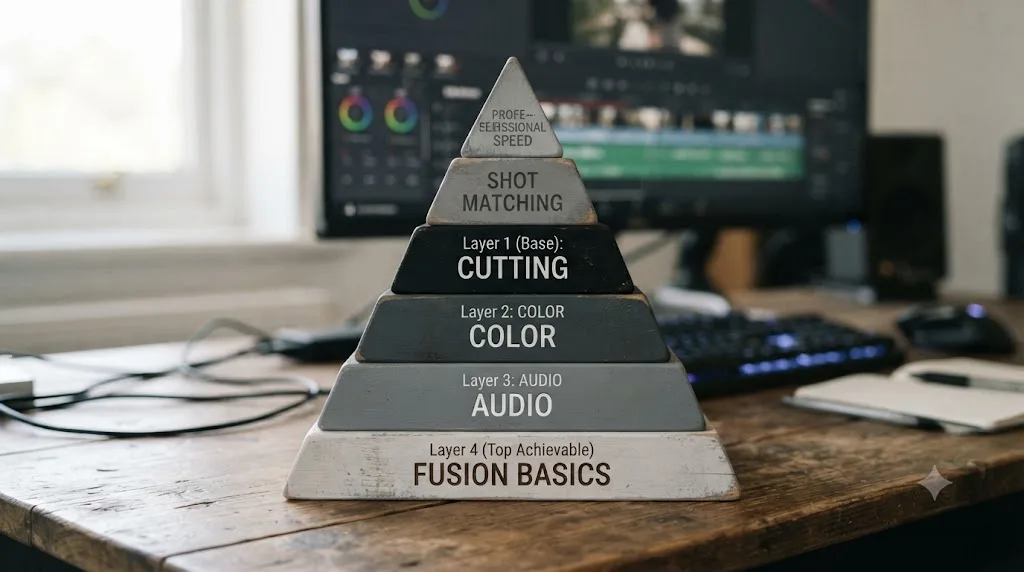
What does the science of skill-building say about a 30-day timeline?
More than you'd expect, and it lines up with 30 days better than most learning claims do. The strongest data point here isn't specific to video editing. It's Josh Kaufman's well-known research on early skill acquisition, popularized in his book and TEDx talk "The First 20 Hours," which directly challenges the old idea that mastery requires 10,000 hours of practice.
Kaufman's framing lands almost exactly on a 30-day plan. As he put it in an interview covered by TED Ideas: "20 hours is doable, that's about 45 minutes a day for about a month, even skipping a couple of days here and there."
Twenty hours of focused practice, spread across a month, is enough to go from knowing nothing to being reasonably good at most new skills, including a piece of software like DaVinci Resolve. That's not a vague inspirational claim. It's the specific research basis for why this post's 30-day plan budgets roughly 45 to 60 minutes a day rather than an hour a week or three hours a day.
The other half of the research concerns how much any single session can actually absorb. Jeffrey A. Greene, the McMichael Family Professor in the School of Education at UNC-Chapel Hill, told UNC's own interview series that "beginners usually spend only 15 to 30 minutes practicing because it's tiring," and that "even experts generally can't practice more than four or five hours a day." If a beginner's honest ceiling is closer to 30 minutes than 3 hours, a 30-day plan that assumes daily 20-minute-to-90-minute sessions, not weekend marathons, is working with the grain of how skill actually forms, not against it.
There's a third piece worth naming: how much time you actually have. Full-time employed people worked an average of 8.1 hours on the days they worked in 2025, 8.5 hours on an average weekday, according to the Bureau of Labor Statistics' American Time Use Survey. After a commute, meals, and sleep, a genuinely honest daily budget for most working adults lands somewhere between 45 minutes and two hours, which is exactly the band Kaufman's research and this plan both assume. A 30-day plan built around four-hour daily sessions isn't ambitious, it's fictional for almost anyone with a job.
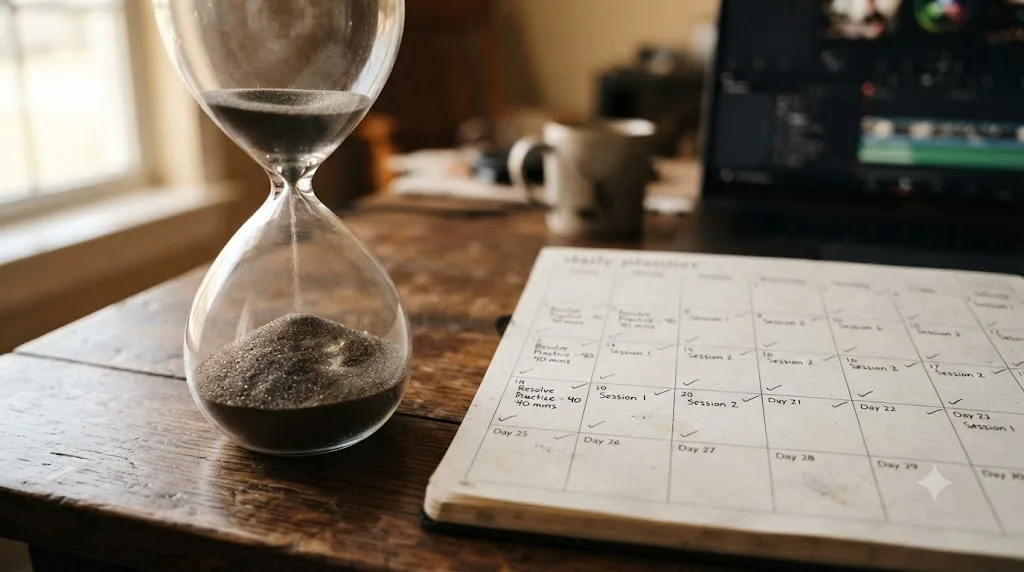
What's a realistic day-by-day plan to learn DaVinci Resolve in 30 days?
Here's the plan, broken into four weeks and thirty individual days, built around roughly 45 to 60 minutes of practice on days you actually show up. It follows one rule that runs through every learning plan on this site: mechanics before taste. You can't color-grade or Fusion-composite a project you haven't finished cutting.
Week 1 (days 1-7): lock the mechanics
The entire goal of week one is a real, exported file. Not a polished one. An exported one.
| Day | Task | Time | What you finish |
|---|---|---|---|
| 1 | Install DaVinci Resolve, open it, look around without editing anything. Learn the Media, Cut/Edit, and Deliver pages by sight | 30-45 min | Nothing exported yet, and that's fine |
| 2 | Import 60-90 seconds of your own phone footage into the Media page. Drag clips onto a Cut or Edit timeline in rough order | 30-45 min | A messy, unordered assembly |
| 3 | Trim each clip's in and out points. Use I and O to mark, delete dead air, reorder anything that plays better out of sequence | 45-60 min | A watchable rough cut |
| 4 | Add one music track underneath. Set a rough volume level, nothing keyframed yet | 30-45 min | A cut with music under it |
| 5 | Open the Deliver page, pick a standard export preset, render the file, and watch the whole thing back | 30-45 min | Your first exported, watched file |
| 6 | Rest, or repeat day 2-5 on a second short clip if you want the reps | 0-45 min | A second cut, optional |
| 7 | Review: write down every moment you had to hunt for a button. That list is week two's cheat sheet | 20-30 min | A running list of stuck points |
A finished rough cut by day 5 matters more than a polished one by day 30, because it proves the plan produces something real, not just intentions. Quality is a later week's problem.
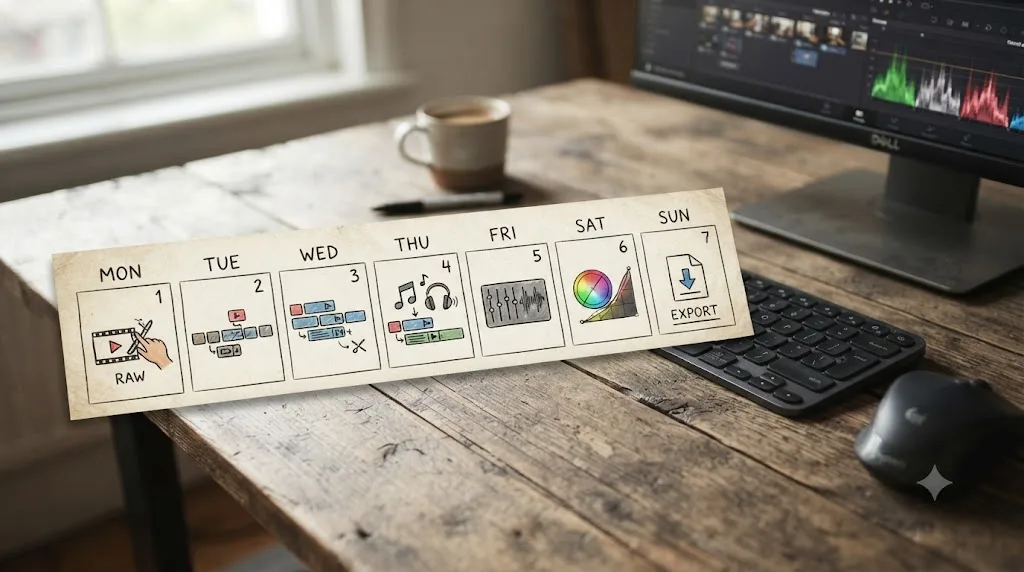
Week 2 (days 8-14): add color and audio
Week two takes the cut you already finished and makes it look and sound like something you'd actually share.
| Day | Task | Time | What you finish |
|---|---|---|---|
| 8 | Open the Color page on last week's cut. Turn on the waveform scope. Fix exposure on one clip using Lift, Gamma, Gain, judged against the trace, not your eyes | 30-45 min | One correctly exposed clip |
| 9 | Repeat the one-node correction across every clip in the timeline. One node per clip, no secondary correction yet | 45-60 min | A fully corrected cut |
| 10 | Nudge white balance on any clip that reads warm or cool against a neutral reference | 30 min | A color-consistent cut |
| 11 | Move to Fairlight. Set rough dialogue and music levels using the mixer, not just the timeline volume line | 30-45 min | Audio that's audible but not balanced |
| 12 | Add keyframes to duck the music under dialogue: one point before speech starts, one after it ends, dragged down between them | 45 min | Music that yields to your voice |
| 13 | Check loudness on the Fairlight meters, not just the peak meter, and adjust so dialogue sits at a consistent level throughout | 30-45 min | A genuinely balanced mix |
| 14 | Export this graded, mixed version and compare it side by side with week one's raw cut | 30-45 min | Proof of one week's real improvement |
The jump from day 7 to day 14 is usually the most encouraging moment in the whole plan, because the side-by-side comparison makes progress visible in a way daily practice never quite feels like on its own.
Week 3 (days 15-21): touch Fusion, then repeat for speed
Week three does two things: a first, deliberately small contact with Fusion, and a second full project to test whether week one and two's mechanics have actually become automatic.
| Day | Task | Time | What you finish |
|---|---|---|---|
| 15 | Open the Fusion page on any clip. Add a Text+ node, connect it through a Merge node between MediaIn and MediaOut | 30-45 min | Static text composited over footage |
| 16 | Animate the title: keyframe its position or opacity so it fades or slides on instead of appearing instantly | 45 min | A simple, moving Fusion title |
| 17 | Start a second short project, 60-90 seconds, on new footage. Cut it using only what week one taught, no tutorial open | 45-60 min | A second rough assembly, built from memory |
| 18 | Grade the second project's cut using the one-node technique from week two, without re-reading any notes | 30-45 min | A second graded cut |
| 19 | Mix the second project's audio, same ducking and loudness technique as week two | 30-45 min | A second mixed cut |
| 20 | Add your Fusion title from days 15-16 to the second project's open, then export the whole thing | 45 min | A second complete, exported project |
| 21 | Time yourself: how long did project two actually take versus project one? Write the number down | 15 min | A real, personal speed baseline |
If your second project takes noticeably less time than your first, that's the actual proof the plan is working, more useful proof than any checklist. If it took just as long, that's fine too. It means week four needs to lean harder on repetition than novelty.
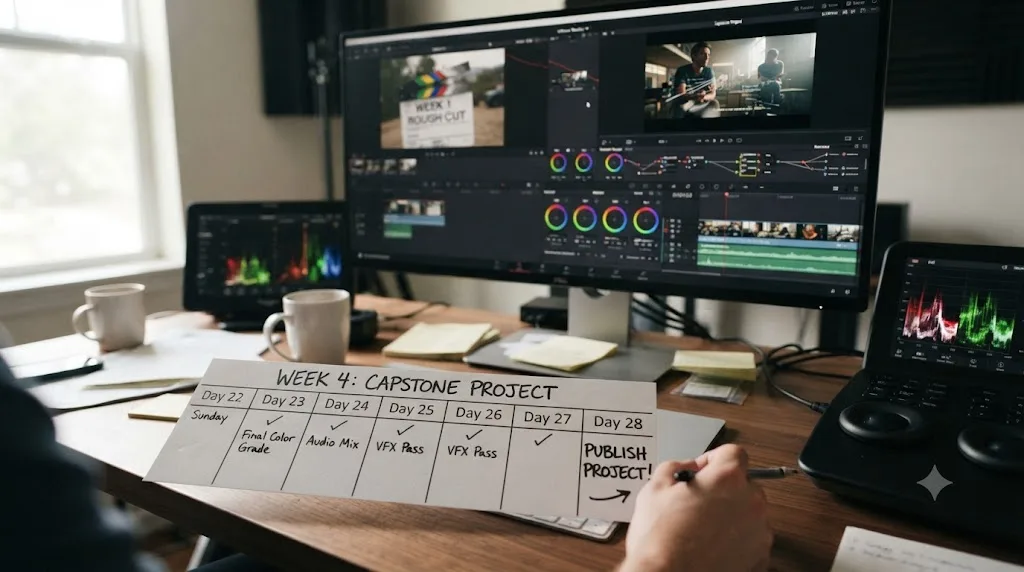
Week 4 (days 22-30): finish and ship a capstone project
Week four combines everything into one real, finished piece, aimed at an actual destination, not another drill.
| Day | Task | Time | What you finish |
|---|---|---|---|
| 22 | Pick a real subject: a place, an event, a person, something with an actual beginning and end. Gather two to three minutes of footage | 30-60 min | Raw material for the capstone |
| 23 | Cut a rough assembly, hard cuts only, exactly like day 3's technique | 45-60 min | A capstone rough cut |
| 24 | Refine the cut: trim pacing, cut dead air, reorder anything that plays better differently | 45-60 min | A locked cut |
| 25 | Grade the whole project, one node per clip or scene, matched loosely for consistency | 45-60 min | A graded capstone |
| 26 | Mix the full project's audio: dialogue clear, music ducked, levels checked against the loudness meter | 45-60 min | A mixed capstone |
| 27 | Add one Fusion title at the open, reusing the node structure from week three | 30-45 min | A titled capstone |
| 28 | Export the finished file and watch it start to finish before calling it done | 30-45 min | A complete, exported capstone project |
| 29 | Publish it somewhere a stranger might actually see it: a channel, a forum, a friend who'll give honest feedback | 15-30 min | A project with real eyes on it |
| 30 | Compare day 30's capstone against day 5's first rough cut. Write down every specific thing that changed | 20-30 min | An honest audit of one month's progress |
That's thirty days, roughly 20 to 25 hours of total hands-on time if you hit most sessions, which lines up almost exactly with Kaufman's 20-hour research window once you account for a couple of skipped days, which every real month includes.
What keyboard shortcuts should you actually learn in week one?
A short, specific list, not the full reference. Mousing over every button works on day 1, but it quietly costs you minutes on every single day after that, and those minutes add up across a 30-day plan faster than almost any other habit.
The shortcuts worth memorizing in week one are the five your hands will use every single session: mark in, mark out, play, shuttle, and undo. These are confirmed defaults on the standard "Resolve" keyboard map, the one the software ships with before you touch the customization panel.
| Action | Mac | Windows | What it's for |
|---|---|---|---|
| Mark In | I | I | Setting the start of a trim or selection at the playhead |
| Mark Out | O | O | Setting the end of a trim or selection at the playhead |
| Play / Pause | Space | Space | The one you'll press more than any other key in the app |
| Shuttle (reverse / slow / fast) | J / K / L | J / K / L | Scrubbing through footage without touching the mouse |
| Toggle Snapping | N | N | Turning magnetic snapping to edit points on or off, useful for tight trims |
| Undo | Cmd+Z | Ctrl+Z | The same modifier-swap pattern as most other apps on each platform |
Two shortcuts every beginner asks about, splitting a clip at the playhead and the difference between a ripple delete and a regular delete, genuinely vary by source and by which exact build you're running. Rather than hand you a wrong key combo with confidence, check the live-bound version yourself: right-click any clip on the timeline and read the shortcuts printed next to "Delete" and "Ripple Delete" in the context menu, or open the Keyboard Customization panel (Cmd+Option+K on Mac, Ctrl+Alt+K on Windows), which is the only reference guaranteed to match the exact version you're running.
This list is deliberately short. The full set runs past a hundred bindings, and our dedicated keyboard shortcuts guide covers all of them by page. Learning six shortcuts well in week one beats skimming sixty and retaining none of them, and the six above are the ones day 2 through day 5's tasks actually require. If you're still deciding between starting on the Cut page or the Edit page, our Cut page vs Edit page breakdown covers which one suits a first-week beginner better, since the two pages don't share every keyboard behavior.
How many hours a day does this plan actually require?
Less than most people assume going in, and the exact number changes what the 30 days can realistically deliver. Here's the honest range.
| Daily practice | What to expect over 30 days |
|---|---|
| Under 20 minutes | Real but slow progress. Stretch the plan to 45-60 days rather than compressing steps |
| 30-45 minutes | The floor this plan assumes. Tight but workable if sessions are consistent |
| 45-60 minutes | The pace this post's day-by-day table is built around, and roughly Kaufman's 45-minutes-a-day research window |
| 90 minutes or more | Faster early progress, with real diminishing returns past Greene's beginner ceiling of about 15-30 focused minutes per sitting before fatigue sets in |
Two sessions a day rarely beats one, for beginners specifically. A morning refresher and an evening block sound efficient, but Greene's research on beginner fatigue suggests the second session mostly re-covers ground the first one already claimed, rather than adding new skill. One solid daily session, protected and consistent, outperforms two shorter, distracted ones most weeks.
If your real week only allows two or three days of practice instead of six, don't compress the plan, stretch it. Run the same 30 steps across roughly 60 to 75 days instead. The order matters far more than the calendar date next to each step, a lesson this site's full-time-job learning plan covers in more depth if your real constraint is a 40-hour work week rather than raw willpower.
How do you know if you're on pace, and what do you do if you're behind at day 10 or day 20?
Two checkpoints, built into the plan itself, so you're never guessing whether you're actually on track or just assuming you are. Both fall at natural seams: the end of week two and the end of week three.
Being behind on day 10 or day 20 is a scheduling problem, not a talent problem, and the fix is almost always to protect the next session rather than to cram a catch-up marathon. A late plan that finishes is worth more than an on-time plan that quietly gets abandoned in week three.
| Checkpoint | You should have finished | Signs you're behind | What to do about it |
|---|---|---|---|
| Day 10 | A color-corrected cut with consistent white balance (day 8-10 of the plan) | You're still on day 3's rough cut, or you haven't exported anything yet | Skip ahead to a single node correction on whatever cut you have, even an unfinished one. Don't restart from day 1 |
| Day 14 | A graded, mixed export you can compare against week one's raw cut | You've graded but never opened Fairlight, or you're avoiding the loudness meter | Do days 11-13 as a single 90-minute block. Audio work compresses well once you know the target level |
| Day 20 | A second, faster project cut from memory, with your Fusion title added | You're still building your first Fusion title, or the second project took just as long as the first | That's fine. Skip the speed comparison, it's diagnostic, not mandatory, and move straight into week four's capstone using whichever project is furthest along |
| Day 25 | A graded, mixed capstone in progress | You haven't started a capstone subject yet | Pick something small on the spot, a five-minute walk filmed on your phone, rather than waiting for the "right" subject to appear |
If more than one checkpoint is behind, that's the real signal to stretch the calendar rather than push harder. Move from the 30-day version to the 60-day version described later in this post, keep the same step order, and treat the missed days as already spent rather than a debt to repay.
What can you realistically do by day 30?
A concrete, testable list, not a feeling. If you can check most of these boxes, the plan worked.
- Import footage, trim it into a coherent sequence, and export a file that plays correctly on the first try
- Read a waveform scope and use Lift, Gamma, Gain as three distinct exposure controls instead of one blurry "make it look better" adjustment
- Set dialogue and music levels so one doesn't bury the other, using keyframed volume automation
- Check a mix against a loudness meter, not just a peak meter, and explain why the two can disagree
- Build a basic Fusion composite from three or four connected nodes and animate one of its parameters
- Finish and publish one real project, start to finish, without a tutorial open the whole time
- Notice, from your own week three timing exercise, that your second project genuinely took less effort than your first
A finished, exported, and published project on day 30 is worth more than a folder of half-finished experiments from a longer plan that never shipped anything. That single finished piece is also the actual evidence you'll want later, when you're deciding whether to keep going toward paid work or a specific specialty.
What you almost certainly can't do yet by day 30: match the color of two clips shot on different cameras so a stranger can't spot the cut, track a graphic onto moving footage in Fusion, key out a green screen cleanly, or cut at a paid editor's speed. None of that is a failure of the plan. It's an honest description of skills that need volume the calendar alone can't manufacture.
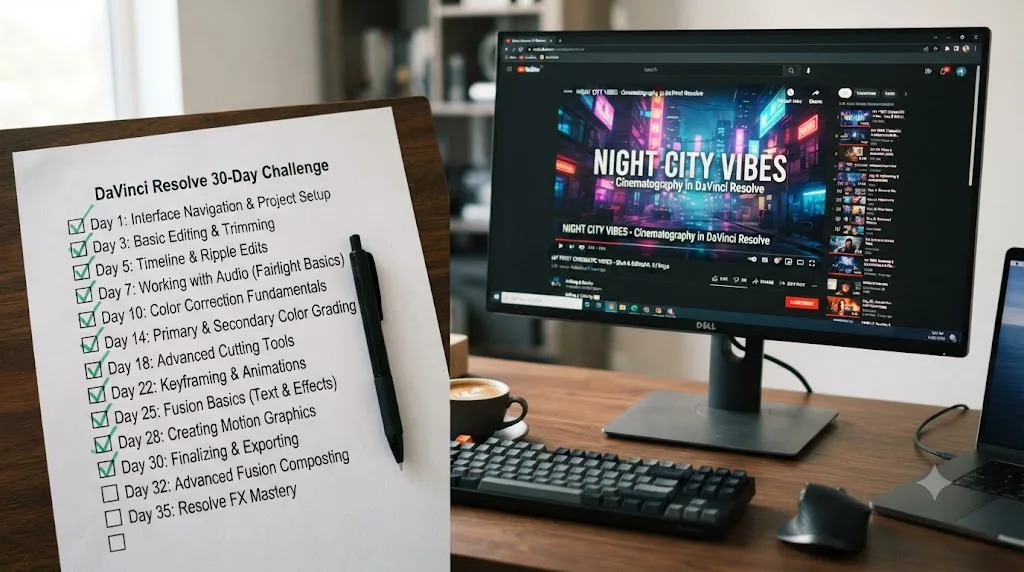
What can't you learn in DaVinci Resolve in just 30 days, no matter how hard you push?
Four specific things resist compression, and knowing them in advance saves you from reading day 30's limits as a personal failure.
Multi-shot color matching. Making a phone clip, a mirrorless clip, and a drone clip all read as the same scene requires an eye that's seen enough mismatched footage to spot a color cast before you can name it. That eye only develops through volume, and 30 days of practice, even daily, is a fraction of the reps it takes.
Deep Fusion work. Tracking a graphic onto a moving object, keying a clean green screen, or building anything past a simple animated title asks for fluency with a genuinely separate mental model, node-based compositing, that our Fusion page tutorial for beginners covers in the depth it actually needs. Week three's single title is a real, useful first contact. It's not the same thing as Fusion competence.
Editing speed. Competence and speed are separate timelines. Your first finished project can easily take ten times longer than the same category of project will take you a year from now, and that ratio has nothing to do with talent. Speed comes from keyboard fluency, presets, and decision speed built over dozens of projects, not thirty days of any single plan.
Judgment about when a grade or a cut is actually done. This is the least visible limit and the one that matters most for paid work. Knowing a color correction has gone too far, or that a cut is dragging even though every individual trim looks fine, is pattern recognition built from seeing your own mistakes repeat across many projects. Thirty days isn't enough repetition for that pattern to fully form.
You can deliver a real, watchable project in DaVinci Resolve after 30 days without ever touching multi-shot color matching, deep Fusion, or paid-speed editing. Plenty of finished work, family videos, a first YouTube upload, a personal project, never needs any of the four. They only become blockers the moment your goal is client work or a specialty career, and at that point the honest timeline runs in months, which our full learning-timeline guide covers goal by goal.
Does prior experience change your 30-day odds?
Yes, but not always in the direction people assume. The 30-day plan above assumes zero prior editing experience, and background shifts specific parts of it faster or slower.
| Background | What speeds up | What doesn't change |
|---|---|---|
| Premiere Pro or Final Cut editor | Week 1 mechanics, often finished in half the time; J-K-L and trimming transfer almost directly | Weeks 2 and 3, nodes and Fusion are equally new to everyone |
| Total beginner, no editing software at all | Nothing speeds up, but nothing needs unlearning either; total beginners often catch switchers by week three | Add a day or two up front for pure interface literacy, panels, workspaces, right-click menus |
| Photographer fluent in Lightroom | Week 2's color correction clicks fast; histograms, white balance, and exposure thinking transfer directly | Week 1's pacing and trimming skills still start from zero |
| After Effects or Nuke user | Week 3's Fusion concepts transfer almost completely, keyframes, masks, node logic | The node graph's left-to-right notation still costs a few days of discomfort even with the concepts already known |
| Musician or podcaster with DAW experience | Week 2's Fairlight mixing is nearly a lateral move, buses and levels behave as expected | Everything visual, cutting, color, and Fusion, still starts from zero |
| CapCut or mobile editor | Cutting and pacing instincts transfer | Expect the first week to feel slower than mobile editing despite the head start, since Resolve's payoff curve is higher but later |
Our full breakdown of how background changes the DaVinci Resolve learning curve goes deeper into each of these cases across the full multi-month timeline, if 30 days is your starting point rather than your finish line.
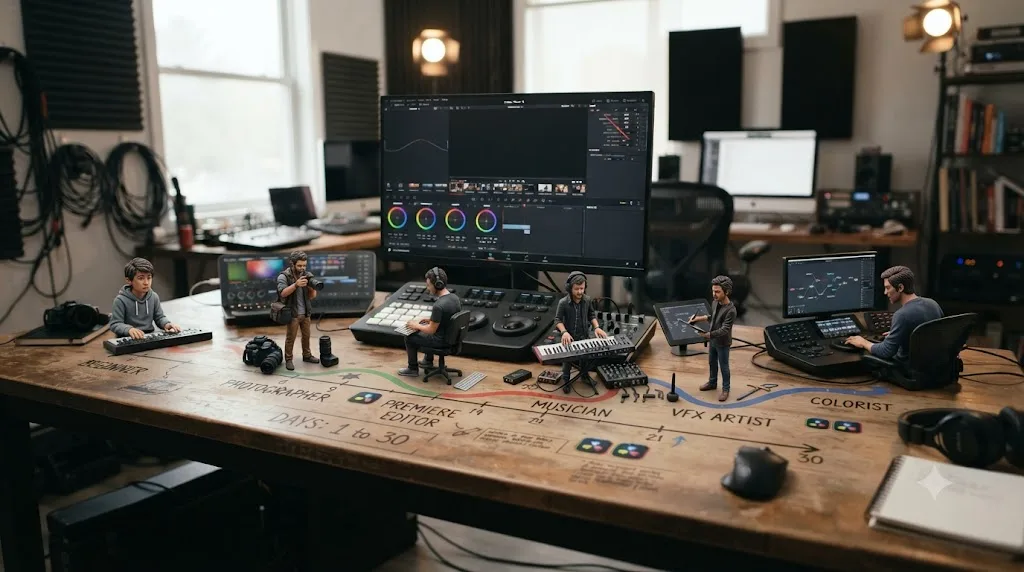
What if your 30-day goal is color grading only, not full editing?
Then most of this plan's day-by-day order should flip, not disappear. Some readers already cut in another app, Premiere at work, CapCut on a phone, and want DaVinci Resolve specifically for its Color page. For that reader, spending days 1-7 on cutting mechanics is close to wasted time.
A colorist-focused 30 days spends almost no time in the Edit or Cut page and almost all of it in the Color page's node graph. The mechanics you still need, importing footage and reading a timeline, take a day or two, not a week, since you're not learning to cut, just to navigate.
| Days | Focus | What replaces the equivalent week in the full plan |
|---|---|---|
| 1-2 | Import a pre-cut sequence (yours or a free practice timeline) and learn the Color page layout, nodes, scopes | Replaces week 1's cutting mechanics entirely |
| 3-9 | Primary correction only: Lift, Gamma, Gain, and reading the waveform and vectorscope on 8-10 varied clips | Our scopes guide covers the exact traces to judge each control against |
| 10-16 | Secondary correction: qualifiers, power windows, and a first real attempt at matching two clips from different cameras | This is the skill the full plan only starts; a colorist-focused month gives it two full weeks instead of a few days |
| 17-22 | LUTs: applying existing looks correctly, then building and exporting one custom LUT | Our custom LUT guide walks through the export step by step |
| 23-30 | Grade a full short project start to finish, including at least one deliberately mismatched pair of shots to practice matching | Functions as this variant's capstone, same as day 22-30 in the full plan |
This variant still can't deliver professional matching by day 30, that skill genuinely needs months of reps regardless of which version of the plan you run, but it gets noticeably closer to it than the general plan does, because every day is spent in the Color page instead of splitting time three or four ways. If you're aiming at colorist work specifically rather than a hobby, our guide to becoming a colorist in DaVinci Resolve picks up exactly where this 30-day variant leaves off.
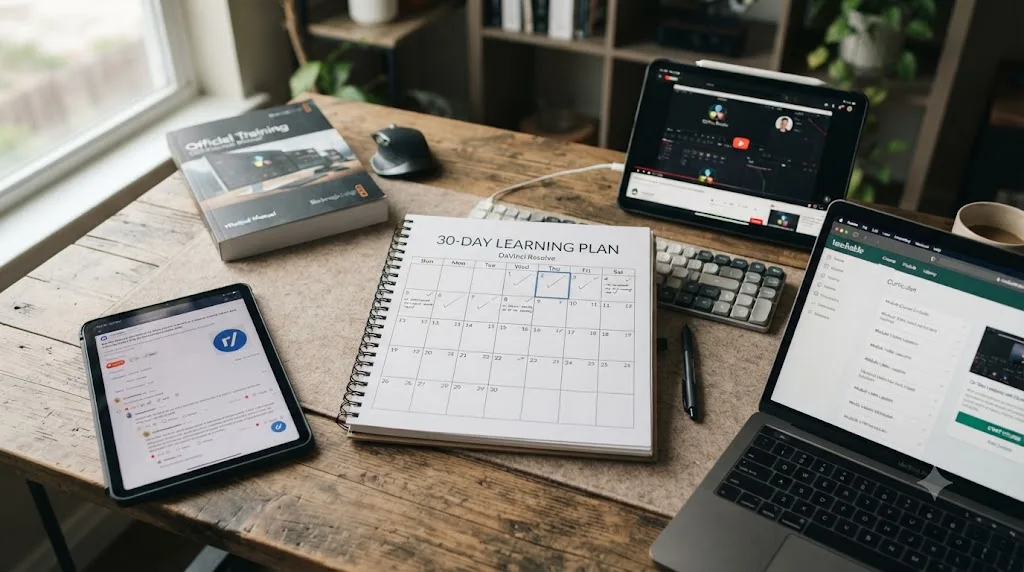
What's the best way to learn DaVinci Resolve in 30 days: course, YouTube, Reddit, or official training?
None of them alone, and pretending otherwise is exactly the kind of overclaim this post is trying to avoid. Each source solves a different part of the 30-day problem, and the honest answer is naming what each one actually is, incumbents included.
Blackmagic Design's own free training is the strongest starting point for structure. It runs a network of more than 250 certified trainers and over 100 training centers worldwide, according to its official training page, with six free downloadable guides, lesson files, and free certification exams for editing, color, Fairlight, and Fusion. Blackmagic also runs a live, free webinar series, ten sessions from late February through April 2026 covering everything from "Getting Started with DaVinci Resolve" to color and Fusion tracks, according to Y.M.Cinema Magazine's coverage of the schedule. Nobody builds a more complete free curriculum, and it's the closest thing to an official answer to "how do I learn this" that exists.
Casey Faris' YouTube channel, with an audience approaching 600,000 subscribers per vidIQ's channel statistics, is the strongest option for a specific, known question. When you already know what you're stuck on, "how do I sync a multicam clip," a targeted video beats digging through a course chapter for the same three minutes.
Reddit's r/DaVinciResolve is where a lot of real beginners already ask this exact question, and it's honest, if noisy, crowd-sourced troubleshooting. It won't hand you a structured 30-day plan, but it's a genuinely useful place to post a stuck moment or a finished project for feedback that a private plan like this one can't give you.
Paid courses trade money for sequencing certainty. LinkedIn Learning's "DaVinci Resolve Fundamentals", taught by colorist Patrick Inhofer, runs 6 hours 50 minutes across setup, editing, color, Fairlight, and delivery, close to the 20-hour hands-on window this plan assumes once you add follow-along practice time. Udemy's "DaVinci Resolve Mastery" bootcamp runs closer to 16 hours of video after its June 2026 update, per Udemy's own course page, and MZed's Color Correction course with Ollie Kenchington runs 7 hours 19 minutes for anyone whose 30 days are pointed specifically at color.
| Source | Solves | Cost | Best fit for a 30-day plan |
|---|---|---|---|
| Blackmagic's free training and webinars | Full structured curriculum, official certification path | Free | Anyone who wants the closest thing to an official sequence |
| Casey Faris on YouTube | A specific, known question | Free | Editors who already have vocabulary to search with |
| r/DaVinciResolve | Crowd-sourced troubleshooting, feedback | Free | Getting unstuck and showing finished work to strangers |
| LinkedIn Learning, Udemy, MZed | Guided sequencing with an instructor | $20-30/month or per-course pricing | Learners who want someone else to have made the sequencing decisions |
Jourdan Aldredge, writing for No Film School about Blackmagic's own beginner training, put the honest first impression plainly: "getting started with Blackmagic Design's DaVinci Resolve can be a bit intimidating." That's a fair description of day one, and it's exactly why this post builds a day-by-day plan instead of pointing at one incumbent resource and calling the problem solved. Stack a free structured path for the shape of the app, a targeted video or Reddit thread for the occasional stuck moment, and your own daily reps, and 30 days becomes a genuinely achievable target instead of a marketing headline.
Is there an AI tool to learn DaVinci Resolve faster during the 30 days?
A specific category of one exists, and it's worth being precise about what it does and doesn't do, since "AI tool for DaVinci Resolve" now covers several genuinely different products with different jobs.
Some tools automate the edit itself. CutAgent runs directly inside DaVinci Resolve on macOS, on both the free version and Studio 20 and later, and executes plain-language edit instructions on your actual timeline, showing each step before it commits. Eddie works before Resolve: you import interviews, chat with it to generate a rough cut, and export the result into Resolve to finish, trusted by more than 40,000 video professionals according to its own site, with plans starting around $25 a month. PremiereCopilot bundles silence cuts, captions, and AI B-roll tools starting at $7.99 a month, but it's built specifically for Adobe Premiere Pro, not DaVinci Resolve, so it isn't actually a same-category option for readers of this site.
None of those three teach you the software. They edit for you, which is a fine goal once you already know what a correct edit looks like and just want speed. It's a mismatched tool for the 30-day plan in this post, because judging whether an automated result is actually right requires the exact skill you're still building.
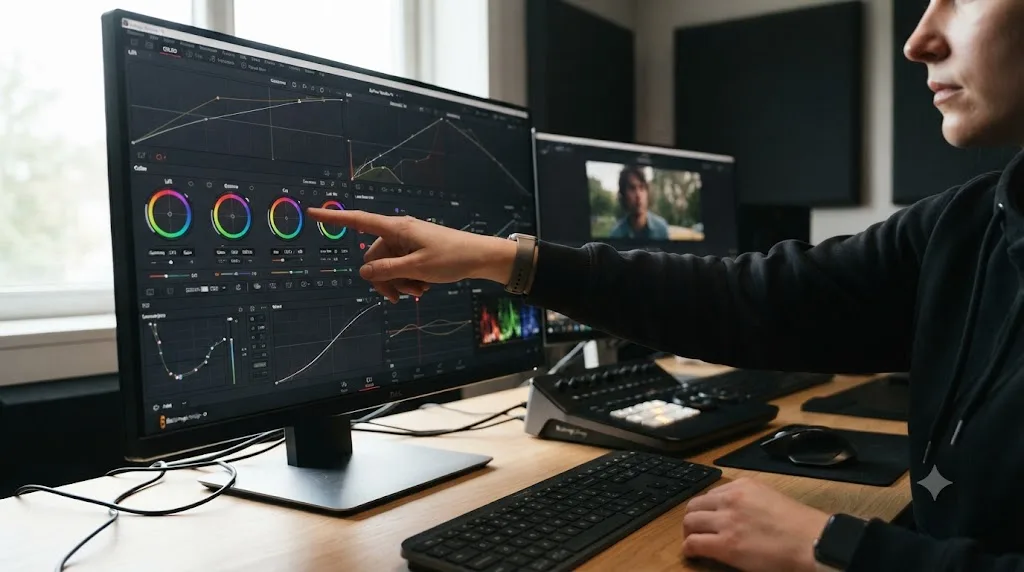
TryUncle is an AI tutor for DaVinci Resolve on macOS: ask in plain words and Uncle points at the exact control on your screen. That's a different job entirely, closer to the "look it up the moment you're stuck" habit this whole plan depends on than to an automation tool. It doesn't touch your timeline or move a node on your behalf. It answers the specific thing stopping you mid-session, which matters most on exactly the days this plan schedules a new technique, day 8's first waveform read, day 15's first Fusion node, day 12's first keyframe. It's a paid app, currently in founder pricing for its first 100 seats, macOS only, and worth checking TryUncle for the current rate before committing, since founder pricing doesn't hold forever.
| Tool | What it does | Runs inside Resolve? | Fits a 30-day learning plan? |
|---|---|---|---|
| CutAgent | Executes plain-language edits on your Resolve timeline | Yes, macOS | Better once you already know what a correct edit looks like |
| Eddie (heyeddie.ai) | Builds a rough cut from a transcript, exports to Resolve | No, works before Resolve | Speeds up assembly, doesn't teach the mechanics |
| PremiereCopilot | AI editing tools for Adobe Premiere Pro | No, Premiere only | Not applicable to DaVinci Resolve users |
| TryUncle | Watches your screen and points at the control you need | Yes, macOS | Built for exactly this: the moment you're stuck mid-lesson |
Whether you use a tool like that or just keep Blackmagic's own documentation open in a second tab, the underlying habit is what actually protects a 30-day timeline: when you're stuck, look the answer up immediately instead of guessing your way past it, because a wrong setting three steps back is what quietly turns a 30-day plan into a 60-day one. Our comparison of learning alone versus with a mentor goes deeper into when a real-time helper is worth it and when it isn't.
Does your hardware or operating system change what's realistic in 30 days?
Yes, and it's worth checking before day 1 rather than discovering it on day 12 when a stuttering timeline starts to feel like a personal failure instead of a settings problem.
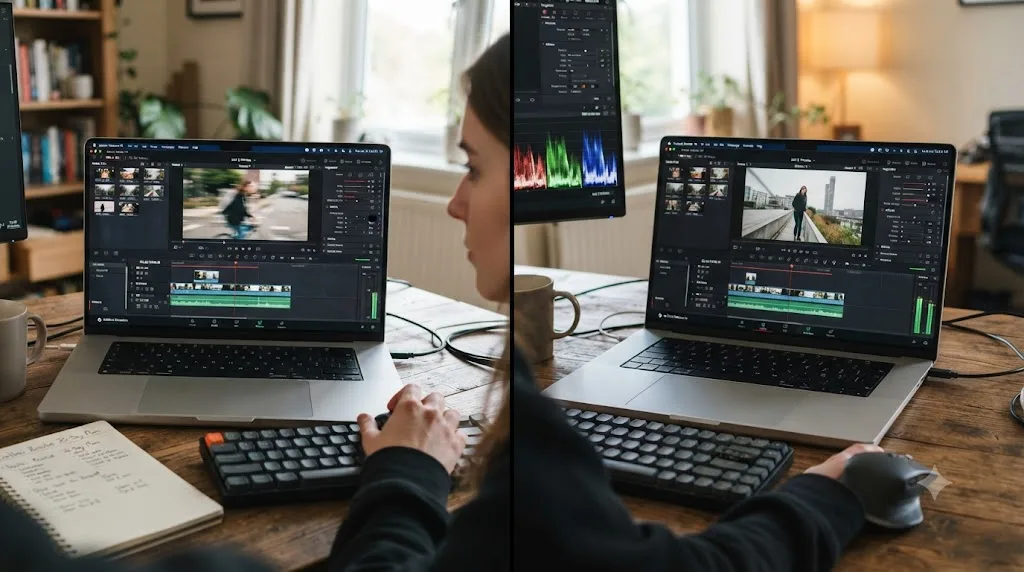
DaVinci Resolve wants at least 16 GB of system memory and a GPU with 4 GB of VRAM or more to run comfortably, per Blackmagic's own tech specs. Below that, expect stutter on anything past a simple cut, which eats real practice time that has nothing to do with your actual editing skill.
On a low-power laptop or older GPU, the fix usually isn't a new machine, it's proxies. Generate Optimized Media or turn on Proxy Resolution before starting week one, especially before day 17's second project and any Fusion day. Our proxy media setup guide for a slow laptop covers the exact settings, and it's worth doing on day 1, not after a week of fighting a choppy timeline you assumed was your own fault.
On Apple Silicon, especially an M1 or M2 rather than the newer chips, Fusion's day 15-16 sessions lean harder on the Neural Engine and unified memory than a straight cut does. Closing other GPU-heavy apps, particularly a browser with hardware acceleration running on a second monitor, frees up more headroom than any single setting inside Resolve. Our Apple Silicon M4 settings guide covers the newer chips specifically, and most of its render and cache guidance scales down to older Apple Silicon with more conservative numbers.
On Windows, the 30-day plan's mechanics are identical, Resolve's interface doesn't change across platforms, but outdated GPU drivers cause far more crashes and stutter than a genuinely underpowered card does. Update NVIDIA or AMD drivers before day 1, and confirm your camera's codec is actually supported, since some formats that decode natively on a Mac need an extra codec pack on Windows.
On Linux, Resolve runs, with real caveats around supported distributions and codec licensing that don't exist on Mac or Windows. Our guide to whether DaVinci Resolve works on Linux covers exactly which distributions are supported before you build a 30-day routine around a setup that might fight you on file compatibility starting day 2.
TryUncle is macOS only, worth flagging plainly here since the AI tutor section above assumes a Mac; Windows and Linux editors following this plan will lean more on Blackmagic's documentation and community threads for the same "look it up immediately" habit.
| Setup | Biggest 30-day risk | Fastest fix |
|---|---|---|
| Under 16 GB RAM or under 4 GB VRAM | Stuttering playback eating practice time | Optimized Media or proxy resolution from day 1 |
| Apple Silicon M1/M2 | Fusion days (15-16) run slow | Close other GPU-heavy apps; keep early compositions small |
| Windows with outdated drivers | Crashes read as skill failure, aren't | Update GPU drivers before day 1 |
| Linux | Codec and distribution compatibility gaps | Confirm your distro and camera formats before committing to the plan |
Free version or Studio: does it matter for a 30-day plan?
No. Every single day in this plan runs fully inside DaVinci Resolve's free version, including the Color page, Fairlight, and Fusion. The free vs. Studio breakdown on this site covers the full feature gap, but the short version for a 30-day learner is simple: Studio's $295 one-time upgrade adds the DaVinci Neural Engine AI tools like Magic Mask and noise reduction, resolutions and frame rates above 4K/60fps, and advanced HDR grading, per Blackmagic's product page. None of that changes how fast a node, a keyframe, or a waveform starts making sense.
Buy Studio later, when a specific project genuinely needs a Studio-only feature, not as a shortcut through this plan. The one honest exception: some heavier camera codecs decode faster in Studio on certain systems, but proxies solve the same playback problem for free, and this plan has you learning proxies by day 1 anyway if your hardware needs them.
Does DaVinci Resolve for iPad fit into a 30-day plan?
Partially, and it's worth knowing exactly where the line sits before you build a routine around an iPad. Blackmagic Design has shipped a dedicated DaVinci Resolve app for iPad since December 2022, and it's still actively maintained, but it isn't a full copy of the desktop app.
DaVinci Resolve for iPad currently offers only the Cut and Color pages, not Edit, Fusion, or Fairlight. That's confirmed directly in Blackmagic's own desktop-versus-iPad feature comparison document: iPads running M1, M2, or M4 chips get the Cut and Color pages with a decent slice of Fusion titles and effects usable inside them, while iPads on A14, A15, or A16 chips (the base iPad and iPad mini) get a more limited version of the same two pages, with several effects and resolution options disabled, according to Blackmagic's iPad feature comparison PDF.
That gap matters directly against this plan's structure. Week 1's cutting and week 2's color both map cleanly onto what iPad Resolve supports. Week 2's Fairlight audio mixing and week 3's Fusion titling don't, since neither page exists on iPad at all. An iPad can carry a learner through roughly half of this plan's days before the software itself runs out of pages.
The base iPad app is free. DaVinci Resolve Studio for iPad is a separate in-app purchase, and Blackmagic's own documentation notes it isn't interchangeable with a desktop Studio license, they're licensed independently even if you own both. Project files move between iPad and desktop through Blackmagic Cloud, but Cloud sync carries project data only, not the underlying media, so footage still needs to be reachable from wherever you open the project next.
The practical read for a 30-day plan: treat an iPad as a genuinely useful device for squeezing in a color-grading or trimming session on a commute, not as a standalone substitute for the full plan. Days that need Fairlight or Fusion, roughly a third of the 30, still need a desktop or laptop session at some point that week.
| iPad chip tier | Pages available | Fits which weeks of this plan |
|---|---|---|
| M1 / M2 / M4 | Cut and Color, plus a fuller set of Fusion titles and effects usable inside those pages | Week 1 (cutting) and week 2's color days |
| A14 / A15 / A16 | Cut and Color, with several effects and resolutions disabled | Week 1 and basic color correction only |
| Any iPad | No Edit, Fusion, or Fairlight page at all | Cannot cover week 2's audio mixing or week 3's Fusion title |
What are the most common day-by-day technical snags, and how do you fix them?
The same handful of technical problems account for most of the lost sessions in a 30-day plan, and every one of them is a settings fix, not a skill gap. Mapping them to the specific day they tend to hit makes them faster to recognize.
A stuck import on day 2 is almost always a codec problem, not a skill problem. If footage won't drag onto the Media page or plays back as a black frame, the file format itself is usually the cause, not anything you did wrong.
| Day | Symptom | Likely cause | Where to fix it |
|---|---|---|---|
| 2 (import footage) | Clip won't import, or shows "unsupported format" | A codec Resolve doesn't decode natively on your OS | Our unsupported file format guide covers the fix by codec |
| 2 (import footage) | Blackmagic RAW clips specifically won't load | Missing RAW codec component or a corrupted card copy | Our BRAW won't import guide walks through the exact cause |
| 5 (first export) | Render gets stuck partway through, or fails silently | Corrupted cache, an unsupported export codec, or a full disk | Our render stuck / failed guide and the site's render-failed troubleshooting cover the common causes |
| 8 (first waveform read) | Scopes panel is empty or won't open | Scopes live under a specific workspace layout, not always visible by default | Our scopes guide shows exactly where to enable it |
| 11-13 (Fairlight mixing) | No sound plays on the Fairlight page even though the timeline has audio | Wrong output routing, or a track disabled in the mixer, not a missing file | Our no audio troubleshooting guide and Fairlight mixing guide cover routing step by step |
| 15-16 (first Fusion node) | The Fusion tab is greyed out or won't open on a clip | Some clip types, especially compound or multicam clips, need flattening first | Our Fusion page tutorial covers which clip types need that extra step |
| 20 (second project, Fusion render) | Fusion composites render far slower than the day 15-16 version | Composition complexity or cache settings, common even on a simple title once GPU load stacks up | Our Fusion render slow guide covers the render-cache settings that usually fix it |
| Any day (project reopened after a folder move) | "Media offline" banner across every clip | Resolve tracks absolute file paths, and moving or renaming a folder breaks the link | Our media offline guide covers relinking without losing edits |
| Any day (project won't open, or Resolve crashes on launch) | The project fails to load, or the whole app closes unexpectedly | Usually a corrupted project database entry or a GPU driver conflict, not a lost project | Our project won't open guide and crashing guide separate the two causes |
None of these problems are evidence the plan is too hard for you. They're the same handful of technical snags every DaVinci Resolve user hits eventually, just concentrated into a 30-day window instead of spread across years. Bookmarking the specific guide for the day you're on, before you hit the wall, costs less time than troubleshooting blind mid-session.
What derails a 30-day DaVinci Resolve plan, and how do you recover?
The same handful of things, over and over, and knowing them in advance is most of the cure.
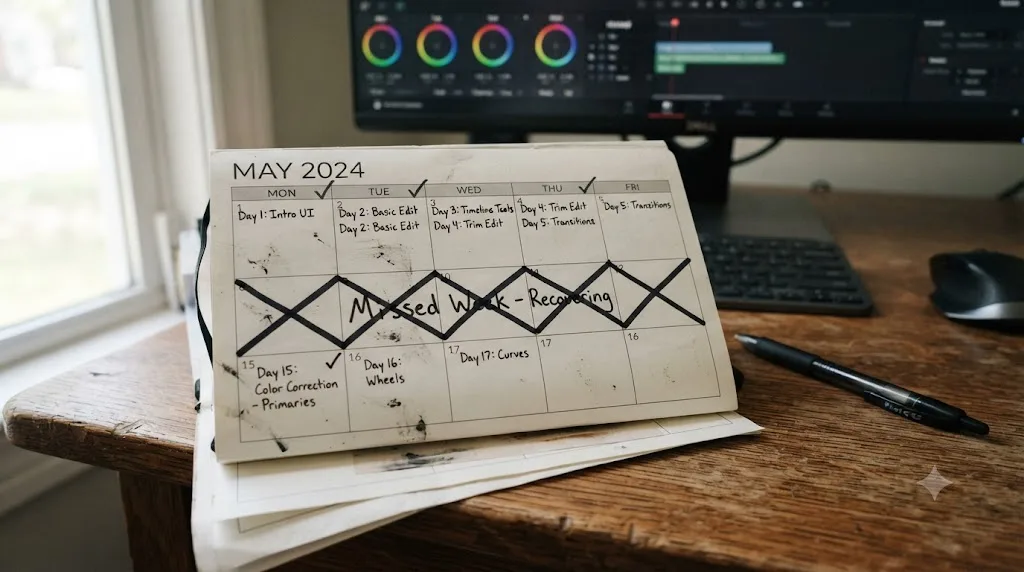
A missed day turns into a missed week. The fix is deciding in advance what a missed day means: resume at the same step tomorrow, don't try to double up and cram two days into one. A missed day costs momentum, not progress, and trying to make it up usually costs the day after too, out of exhaustion.
Following tutorials instead of building. This is the single most common way a 30-day plan quietly turns into a 60-day one that never finishes. A tutorial shows you someone else's decisions with the answer already on screen, which is recognition, not recall. Days 17 through 20 of this plan specifically ask you to work from memory for this reason. Editing your own project from memory builds DaVinci Resolve skill faster than rewatching a tutorial a third time, because recalling a step teaches more than repeating one.
Scope creep on the capstone. Week four's project is the one place ambition tends to run away from the calendar. If day 22's subject is genuinely a wedding or a full short film, cut the scope now: two to three minutes, one location, one clear beginning and end. A finished small project beats an abandoned ambitious one every time.
Guessing instead of looking things up. A wrong setting three steps back can cost a full session of confused troubleshooting later, and that lost session is what actually stretches a 30-day plan into a longer one, not any inherent difficulty in the software. Look up the exact stuck control immediately, whether that's Blackmagic's documentation, a targeted YouTube search, a Reddit thread, or an AI tutor watching your screen.
Technical problems that aren't skill problems. Media that goes offline after a folder move, a timeline that stutters on unoptimized footage, a render that fails near the end. None of these are a verdict on your learning pace. Keep media in one folder structure from day 1, generate proxies on day 1 if your hardware needs them, and leave project backups on so a crash costs minutes instead of a session.
If you fall behind by more than a few days, don't restart the plan from day 1. Resume at the exact step you left off. The 30-day structure is a guide for sequencing, not a deadline with a penalty attached, and a plan that runs to day 35 or day 40 because life happened twice is still a real, working plan.
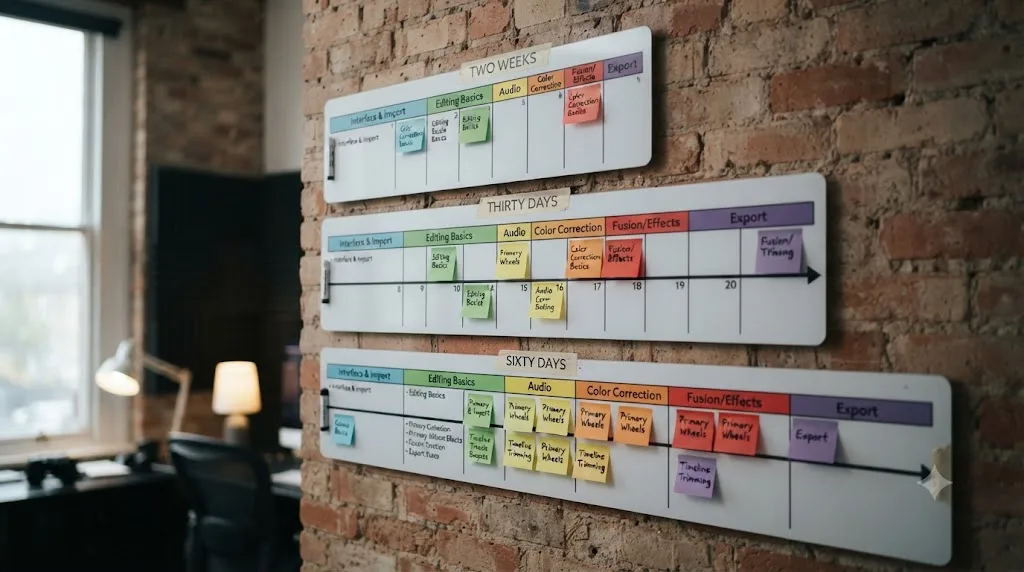
What if you only have two weeks, or need 60 days instead?
The plan compresses and stretches cleanly, because the order of skills matters more than the calendar dates attached to them.
Two weeks instead of thirty days. Compress by cutting depth, not steps. Do days 1-7 as written, then merge weeks 2 through 4 into a single second week: one day for color, one for audio, one for a small Fusion title, and finish with a shorter capstone, 60-90 seconds instead of two to three minutes. You'll finish with a real project and working mechanics, with less repetition on the second-project speed check that week three normally provides.
Sixty days instead of thirty. Stretch, don't skip. Run the exact same thirty steps at half the daily frequency, three or four sessions a week instead of six, and let each step breathe. This is the more sustainable path for anyone whose honest weekly budget is closer to three to five hours than seven, which our full-time-job learning plan builds out as a full twelve-week structure if that's genuinely your situation.
A single weekend intensive. Worth trying only if you're using it to compress a specific step you're already partway through, not to manufacture the whole plan from a standing start. A weekend with no plan before it and no follow-up week after it produces a good weekend and then the same stall everyone else hits around day 10.
| Available time | Adjusted plan |
|---|---|
| 2 weeks | Days 1-7 as written, then one day each for color, audio, and Fusion, then a shorter capstone |
| 30 days (default) | The plan in this post, as written |
| 60 days | The same 30 steps, at three to four sessions a week instead of six |
| 12+ weeks around a full-time job | This site's dedicated 12-week plan, built for a tighter, more protected weekly schedule |
What should day 31 look like?
Day 31 is an audit, not a new lesson. Look at what you actually finished, your day 5 rough cut, your day 14 graded and mixed version, your day 21 speed comparison, and your day 30 capstone, and compare all four side by side. That progression is the real answer to whether the 30 days worked, more honest than any checklist.
Then pick a direction based on your actual goal, not the tier that sounds most impressive. If a family video or a personal project was always the goal, you're likely already there, and the next month should be more finished projects, not more lessons. If YouTube-ready work is the goal, our guide to how long DaVinci Resolve takes to learn puts that tier at one to two months total, meaning day 31 is closer to the finish line than the start. If paid client work or a colorist career is the real target, treat the 30 days as the first month of a three-to-six-month or multi-year plan, not a shortcut around it, and our practice project list is the natural next stop for structured reps once the initial 30 days are behind you.
Thirty days doesn't make you a professional editor. It makes you someone who can finish a real project in DaVinci Resolve without flailing, which is a genuinely different person than you were on day 1. That's the honest, defensible claim this whole plan was built to deliver, and it's worth more than a bigger promise that quietly falls apart around day 12.
So, can you learn DaVinci Resolve in 30 days? Yes, the version of "learn" that matters most when you're starting from zero: a real, finished, exported project, a working grasp of cutting, color, and audio, and a first honest look at Fusion. Not the version that gets you paid work by day 31. Start the plan today, protect 45 minutes on your calendar, and check back in on day 30 with something real to compare it against.
Frequently asked questions
- Can you learn DaVinci Resolve in 30 days?
- Yes, if 'learn' means cutting, grading, mixing, and exporting a real project with confidence. No, if it means professional-level color matching, deep Fusion compositing, or the speed a paid editor needs. Thirty days of steady practice, about an hour a day, gets most beginners through the mechanics. The judgment-based skills keep improving for months after that.
- How many hours a day do you need to learn DaVinci Resolve in a month?
- About 45 to 60 minutes a day, five or six days a week, which lands close to Josh Kaufman's well-known '20 hours' threshold for basic competence in a new skill. Less than 30 minutes a day still works, it just stretches the plan past 30 days. More than 90 minutes a day rarely speeds things up, since a beginner's focus tends to fade before a second hour does anything useful.
- What's the fastest way to learn DaVinci Resolve fast, in 30 days or less?
- Finish a small real project every few days instead of watching tutorials back to back. Recall beats recognition: rebuilding a technique from memory teaches more per minute than rewatching someone else demonstrate it. Pair that with looking up the exact stuck control the moment you hit it, rather than guessing, since a wrong setting three steps back is what actually stretches a learning timeline.
- Can a total beginner learn DaVinci Resolve in 30 days with no prior editing experience?
- Yes, and total beginners sometimes move faster than switchers from another NLE, because they have no old habits to unlearn. Add a few extra days for pure interface literacy, panels, workspaces, right-click menus, but the 30-day plan in this post assumes zero prior editing experience and still reaches a finished, exported project.
- Is 30 days enough to get paid editing work in DaVinci Resolve?
- Not usually. Thirty days gets you a finished project and working mechanics, not a portfolio. Our guide to how long DaVinci Resolve actually takes to learn puts a real, hireable three-piece portfolio at three to six months of steady practice. Thirty days is the first real step on that road, not the destination.
- What's a realistic 30-day DaVinci Resolve plan if you work full time?
- The same sequence, mechanics first, then color and audio, then a small Fusion project, stretched to fit whatever your evenings actually allow. If four to six hours a week is your real ceiling, this post's plan compresses cleanly, or you can run our full 12-week plan for a full-time job instead, which spreads the identical skills across a schedule built to survive a bad week.
- Does DaVinci Resolve Studio help you learn faster in 30 days?
- No. Every skill in a 30-day plan runs fully in the free version, including the Color page, Fairlight, and Fusion. Studio's $295 one-time upgrade adds AI tools like Magic Mask and noise reduction, and resolutions above 4K, none of which change how fast nodes and keyframes start making sense.
- What app actually helps you while you're using DaVinci Resolve, not just before or after a session?
- A small category of tools does this specifically. TryUncle is an AI tutor for DaVinci Resolve on macOS: ask in plain words and Uncle points at the exact control on your screen, live, while you're mid-project. That's different from a course you pause to watch or a rough cut an automation tool builds for you elsewhere. It doesn't touch your timeline, it just answers the thing stopping you right now.
Sources
- TED Ideas: Don't have 10,000 hours to learn something new? That's fine, all you need is 20 hours (Mary Halton, on Josh Kaufman)
- UNC-Chapel Hill: Expertise expert offers 8 tips for learning a new skill (Jeffrey A. Greene)
- U.S. Bureau of Labor Statistics: American Time Use Survey, 2025 Results
- DaVinci Resolve - Training (Blackmagic Design)
- Y.M.Cinema Magazine: Blackmagic Is Offering Free DaVinci Resolve Webinars. Here's the Full Schedule
- PetaPixel: DaVinci Resolve 21 officially released with new photo editing, AI tools, and much more
- CG Channel: Blackmagic Design releases DaVinci Resolve 21.0
- No Film School: Level Up Your Editing Skills With Blackmagic's Beginner's Guide to DaVinci Resolve 19 (Jourdan Aldredge)
- Casey Faris - YouTube channel
- vidIQ - Casey Faris channel statistics
- LinkedIn Learning: DaVinci Resolve Fundamentals (Patrick Inhofer)
- Udemy - DaVinci Resolve Mastery: The Complete Video Editing Bootcamp
- MZed - Color Correction with DaVinci Resolve (Ollie Kenchington)
- DaVinci Resolve product page (free vs Studio)
- DaVinci Resolve - Tech Specs (Blackmagic Design)
- PremiereCopilot (AI plugin for Adobe Premiere Pro)
- Eddie AI (heyeddie.ai, assistant video editor)
- CutAgent (AI video editing agent for DaVinci Resolve)
- TryUncle (product site: how Uncle works, pricing, setup)
- TryUncle FAQ
- Blackmagic Design: DaVinci Resolve Studio 20 Feature Comparison, Desktop vs iPad (PDF)
- Blackmagic Design: press release announcing DaVinci Resolve for iPad (October 2022)
- Larry Jordan: Almost 100 Essential Keyboard Shortcuts for DaVinci Resolve (PDF)
Put this guide to work with TryUncle.
Ask about the step you’re on. TryUncle sees your screen and points at the control you need, so you can keep learning in your own project.
Get TryUncle for Mac or WindowsKeep reading

Guides · Jul 7, 2026 · 32 min
How Long Does It Take to Learn DaVinci Resolve?
How long DaVinci Resolve actually takes to learn: a first rough cut in an afternoon, Color and Fairlight in weeks, Fusion in one to three months.
Guides · Jul 15, 2026 · 34 min
DaVinci Resolve Learning Plan for a Full-Time Job
A realistic DaVinci Resolve learning plan for people with a full-time job: weekly hour budgets, a 12-week schedule, and how to protect practice time.

Guides · Jul 15, 2026 · 37 min
DaVinci Resolve Practice Projects for Beginners: 10 to Try
10 ranked DaVinci Resolve practice projects for beginners, from a 3-clip hard cut to a full capstone edit, plus where to find free practice footage.